Administrator journey
This chapter is for platform administrators (members of
platform-admins). Everything a data engineer can do is described in
Data engineer journey; here you find what the Admin menu adds.
Signing in and the administration menu
Open https://<customer>.security.datafoundation.eu and sign in (see
Introduction). As an administrator you see an extra Admin menu in
the top bar. Open it:
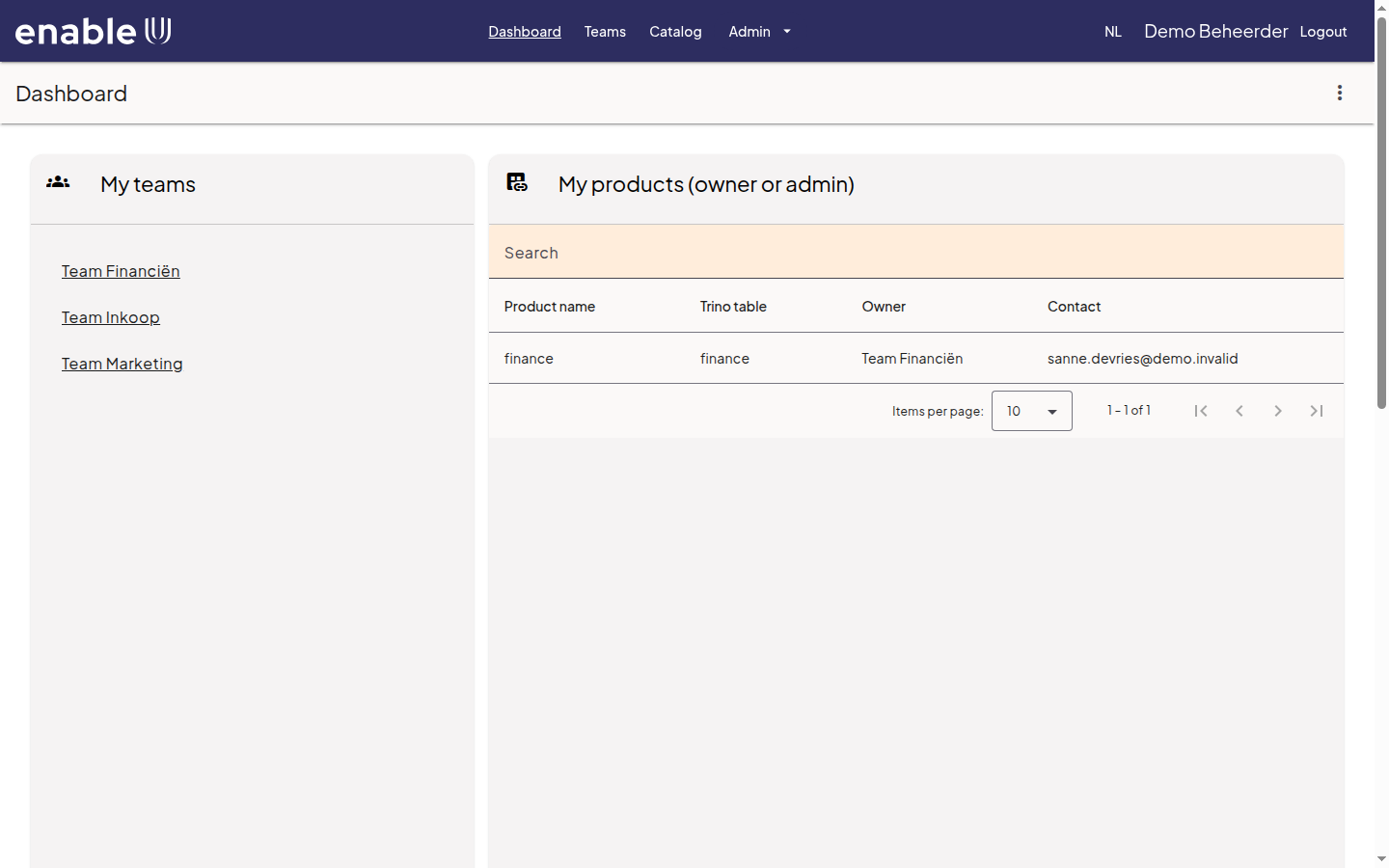
User management: create users, give users a platform role and add users to a team.
Product sync: bring the catalog and Security Center in line with each other.
Unity Catalog: the rules for creating catalogs and the requests that wait for your decision.
Creating a user
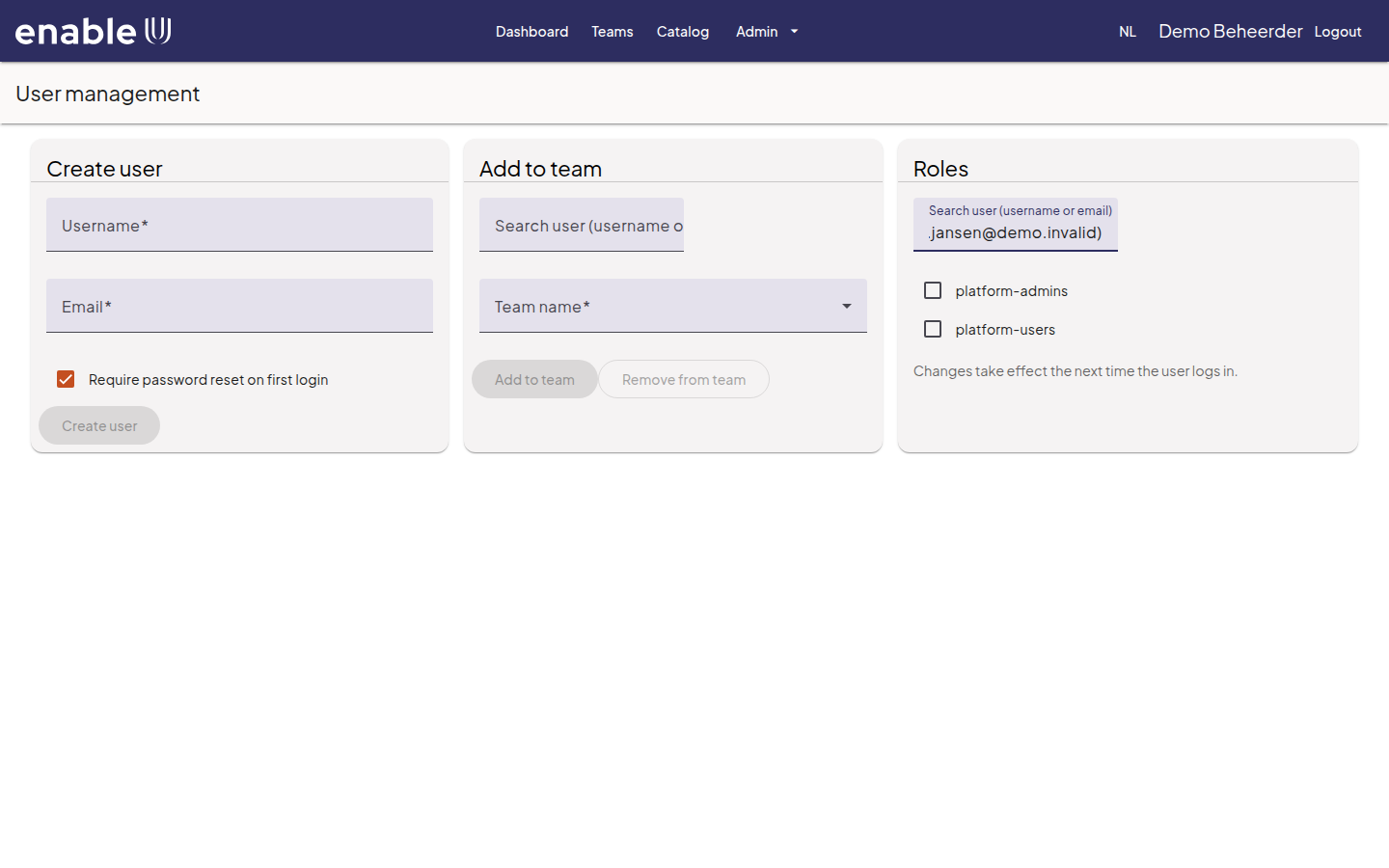
Open Admin > User management. The page has three cards: Create user, Add to team and Roles.
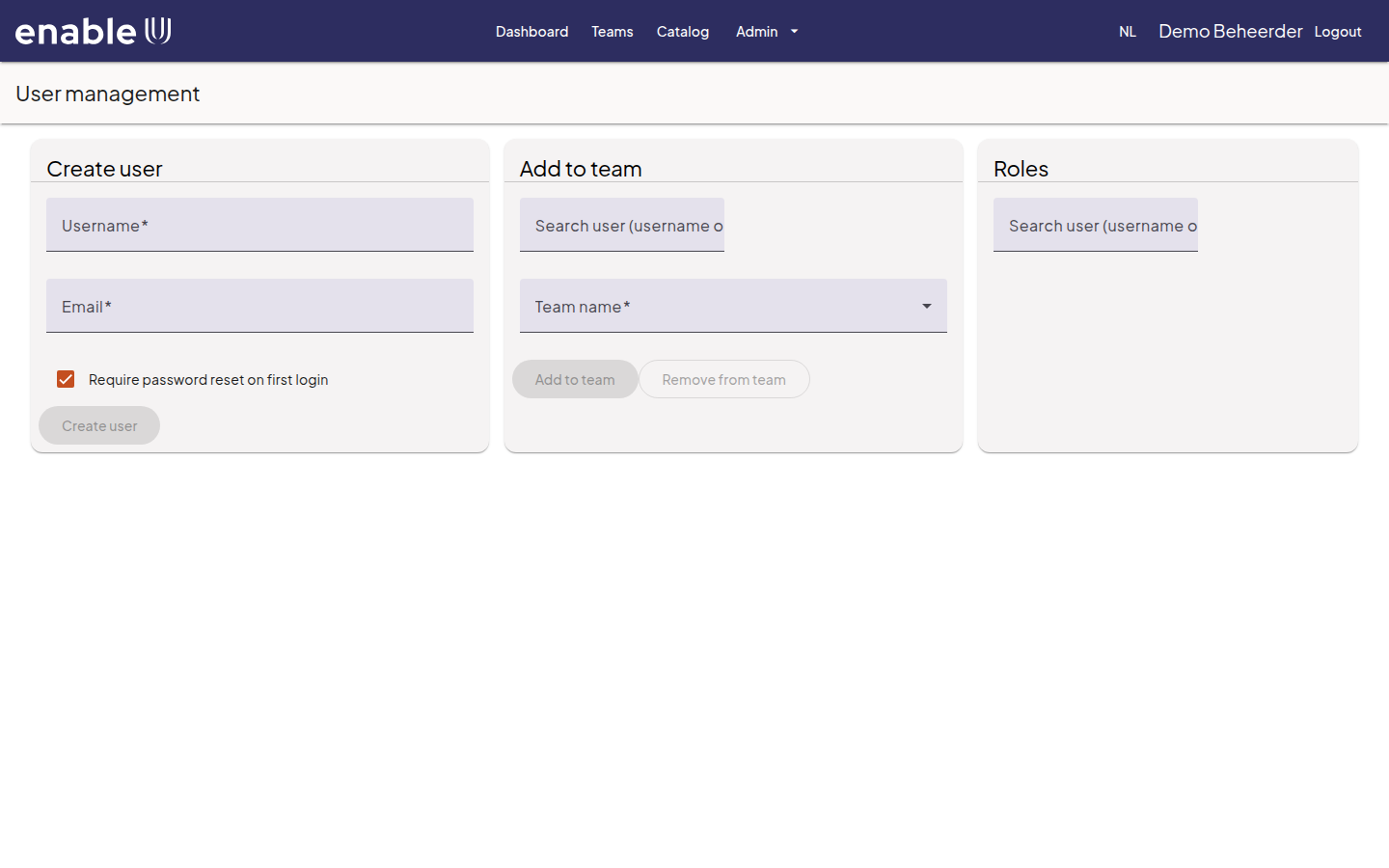
In the card Create user, fill in the Username and the Email address of the new user. The user signs in with this e-mail address.
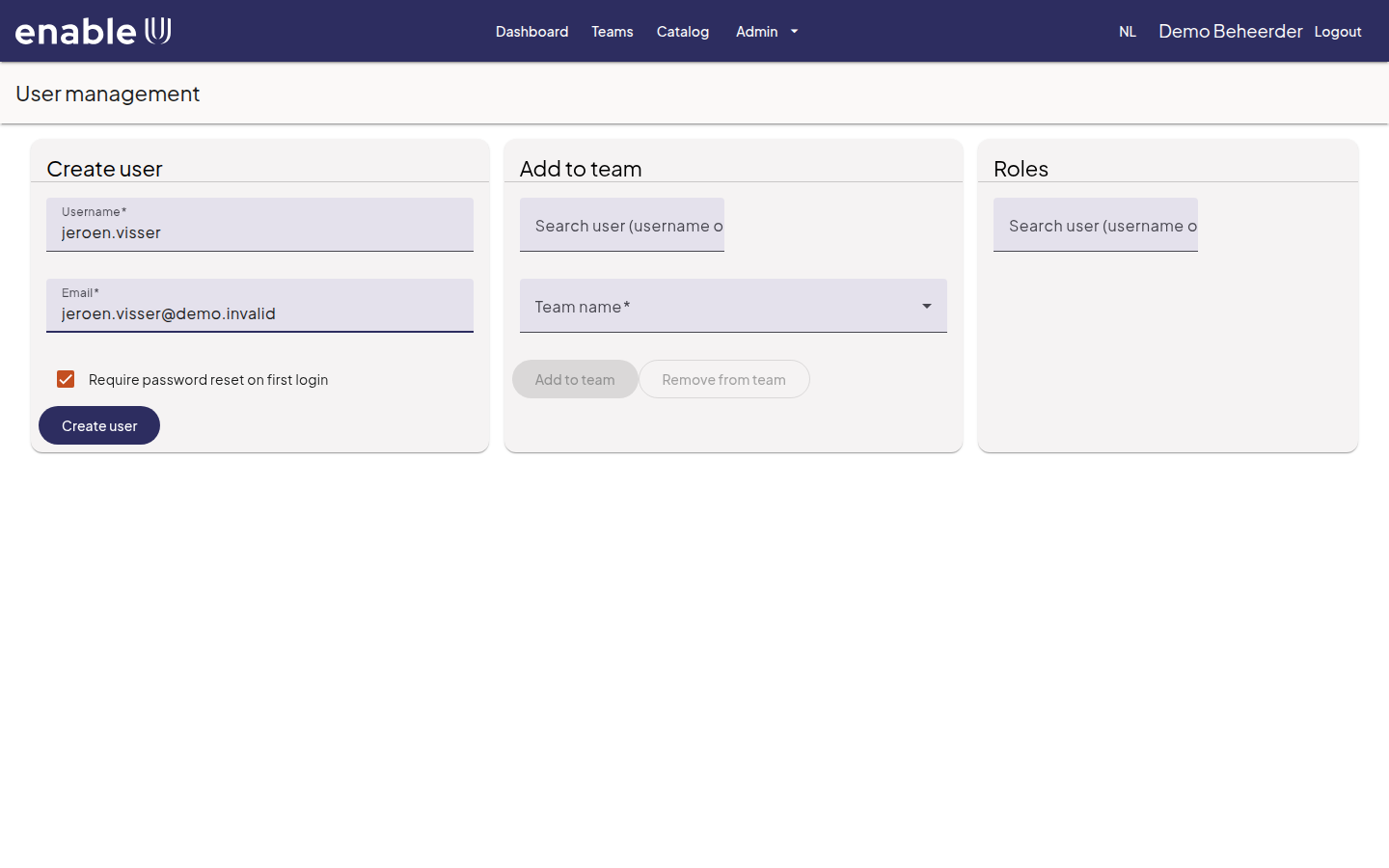
Leave Require password reset on first login checked, so the user has to choose their own password. Choose Create user.
The page shows the new user and a Temporary password. It is shown only once: copy it now and hand it to the user in a safe way.
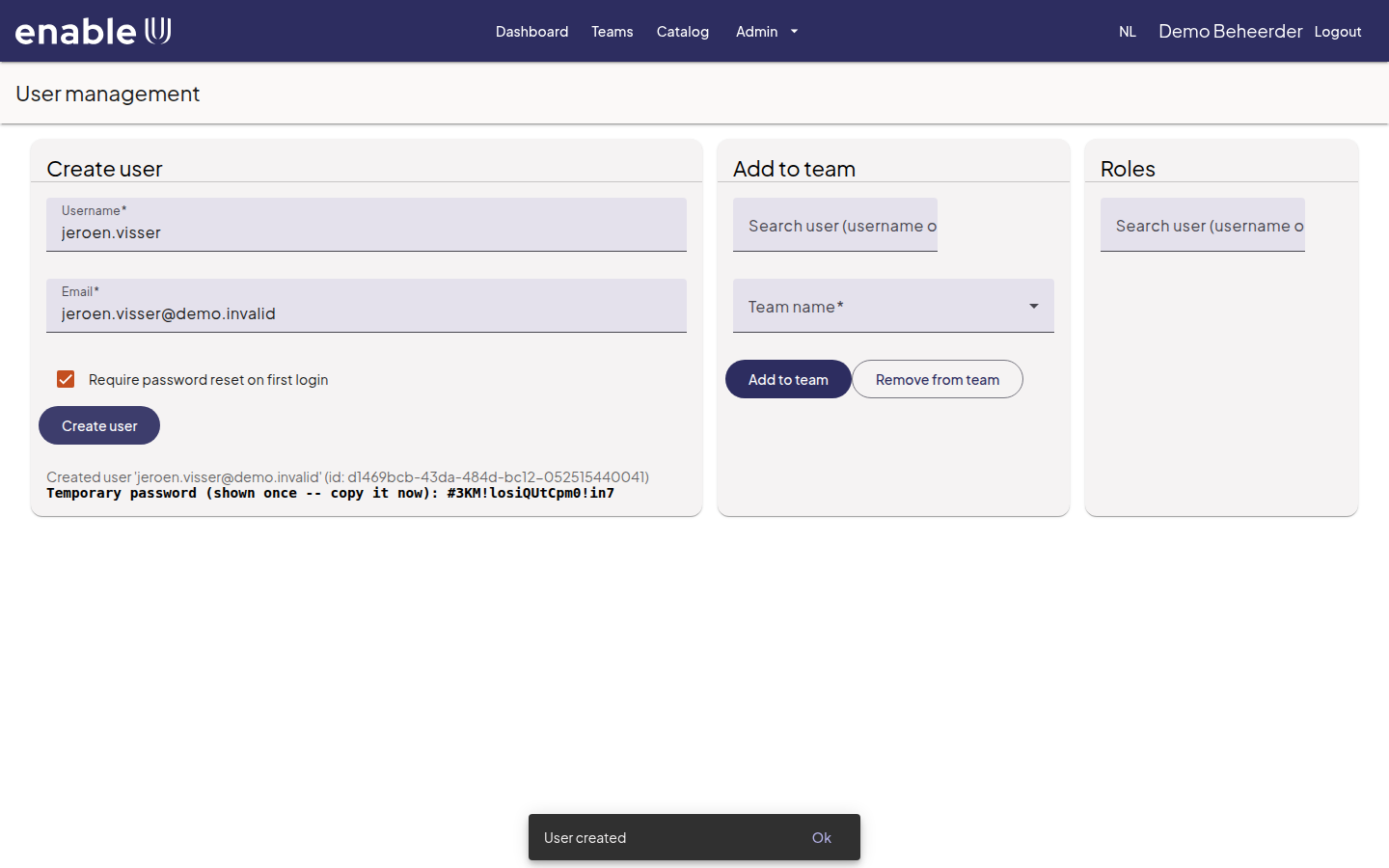
Note
The user changes the temporary password and fills in a first and last name at the first sign-in, see Introduction. There is no “forgot password” function: if someone loses their password, ask the platform administrator of your organization to set a new one.
Making someone an administrator
Every user has a platform role: platform-users for everybody and
platform-admins for administrators. You change roles in the card
Roles:
Type a few letters of the name or e-mail address in Search user (username or email) and pick the user from the list.
The roles of the user appear as check boxes. Tick platform-admins to make the user an administrator, or clear it to take the role away. The change is saved at once; the message Role granted or Role revoked confirms it.
Note
A change applies the next time the user signs in (the card says so). You cannot take your own administrator role away, and the last administrator always stays.
Teams
A team is the group of people that owns data products and asks for access to the products of other teams. Teams are listed under Teams in the top bar.
Creating a team
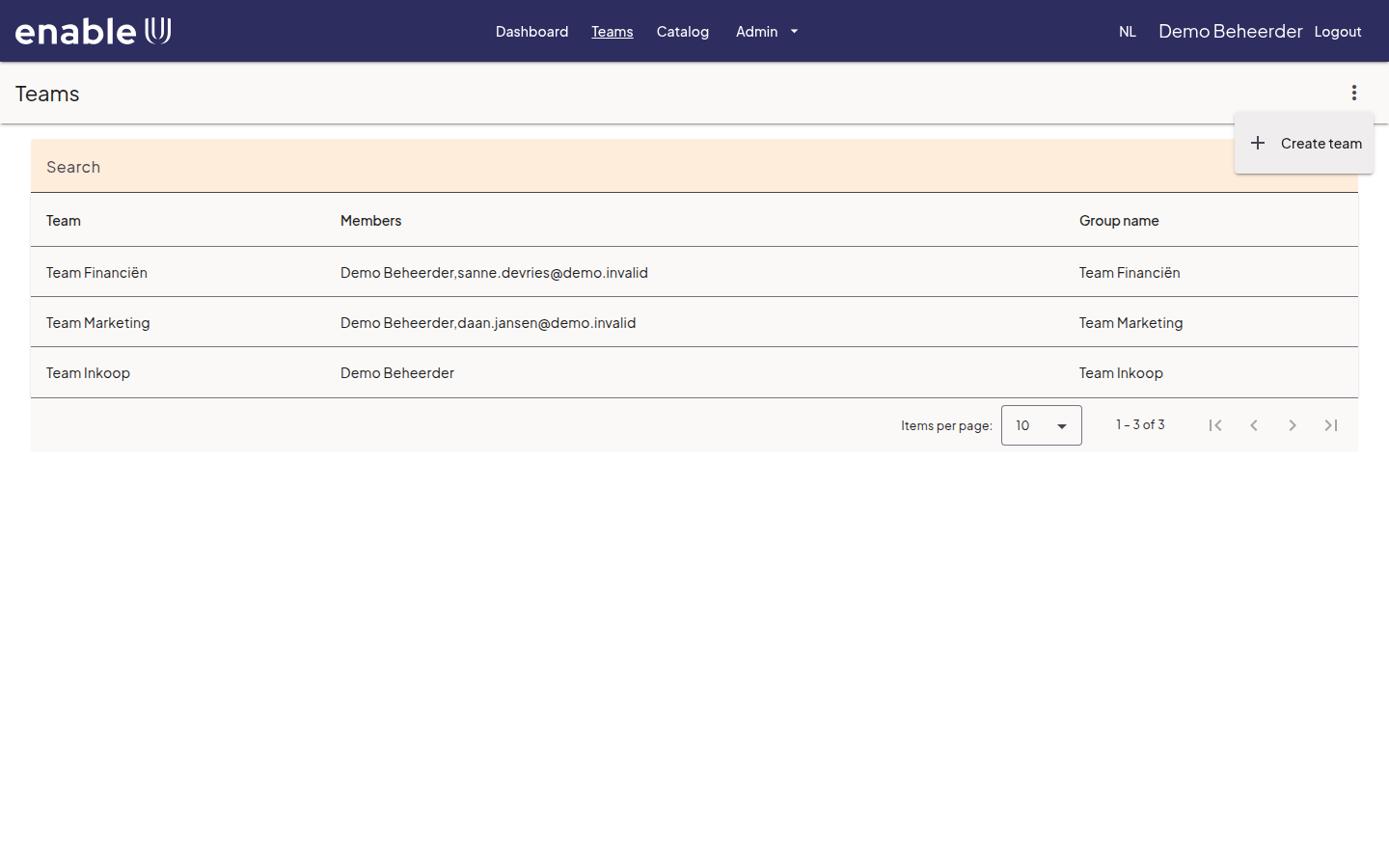
Open Teams, choose the menu with the three dots at the top right and choose Create team.
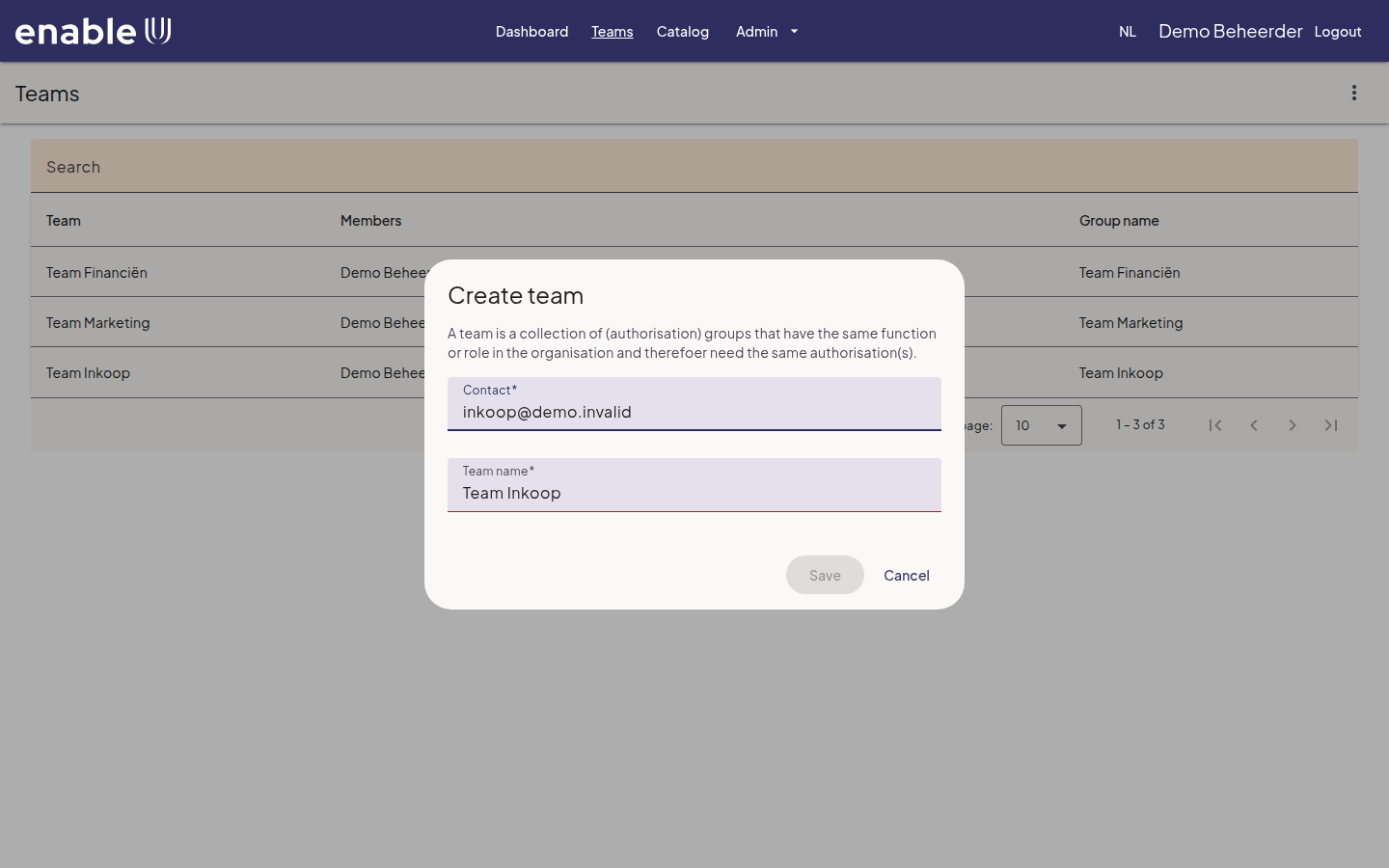
Enter a Team name and a Contact: the e-mail address people can write to about this team. The contact is filled in with your own address; replace it if the team has its own. Choose Save.
The team appears in the list. You are its first member, because you created it.
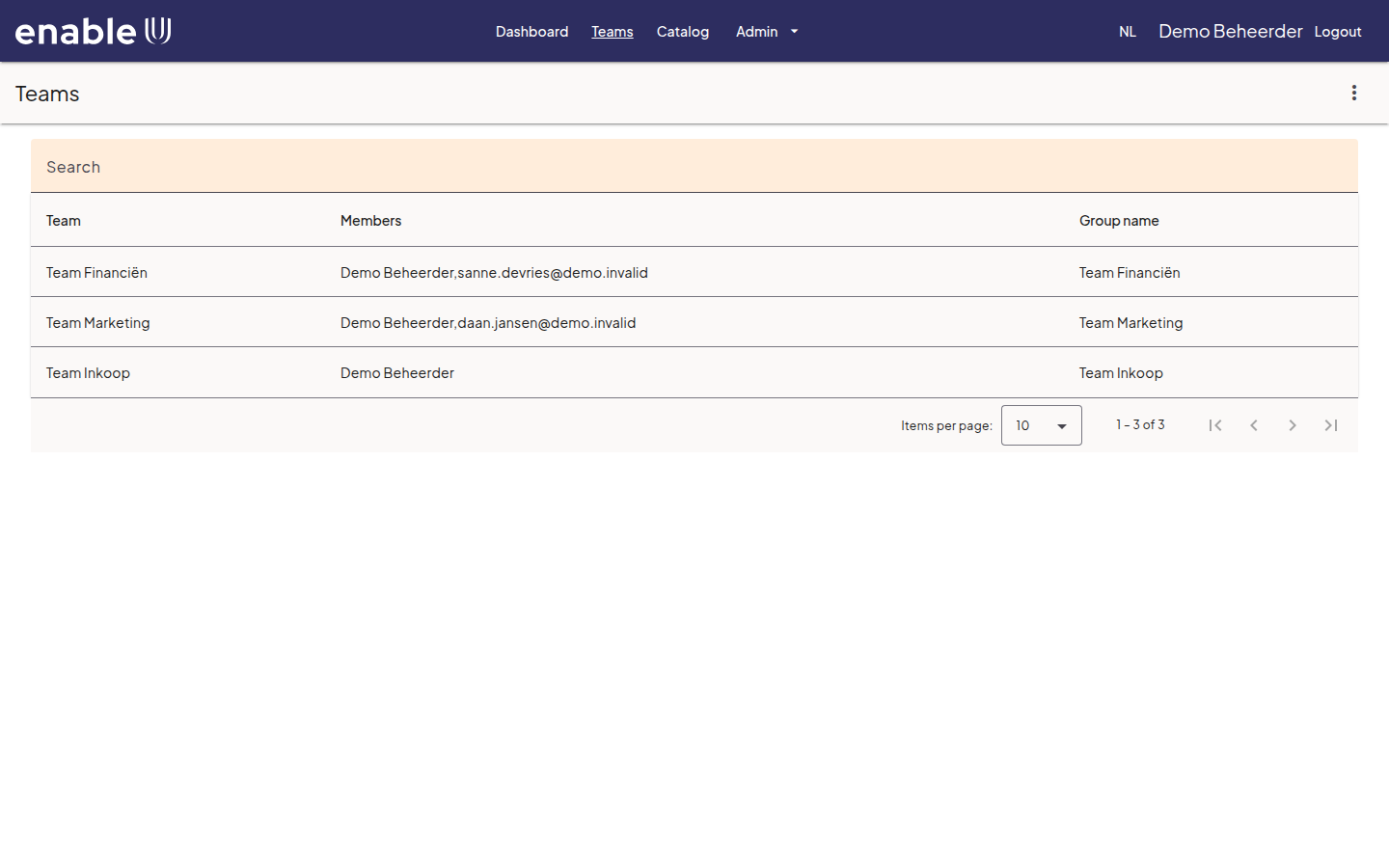
The overview shows, for each team, its members and the name of its group:
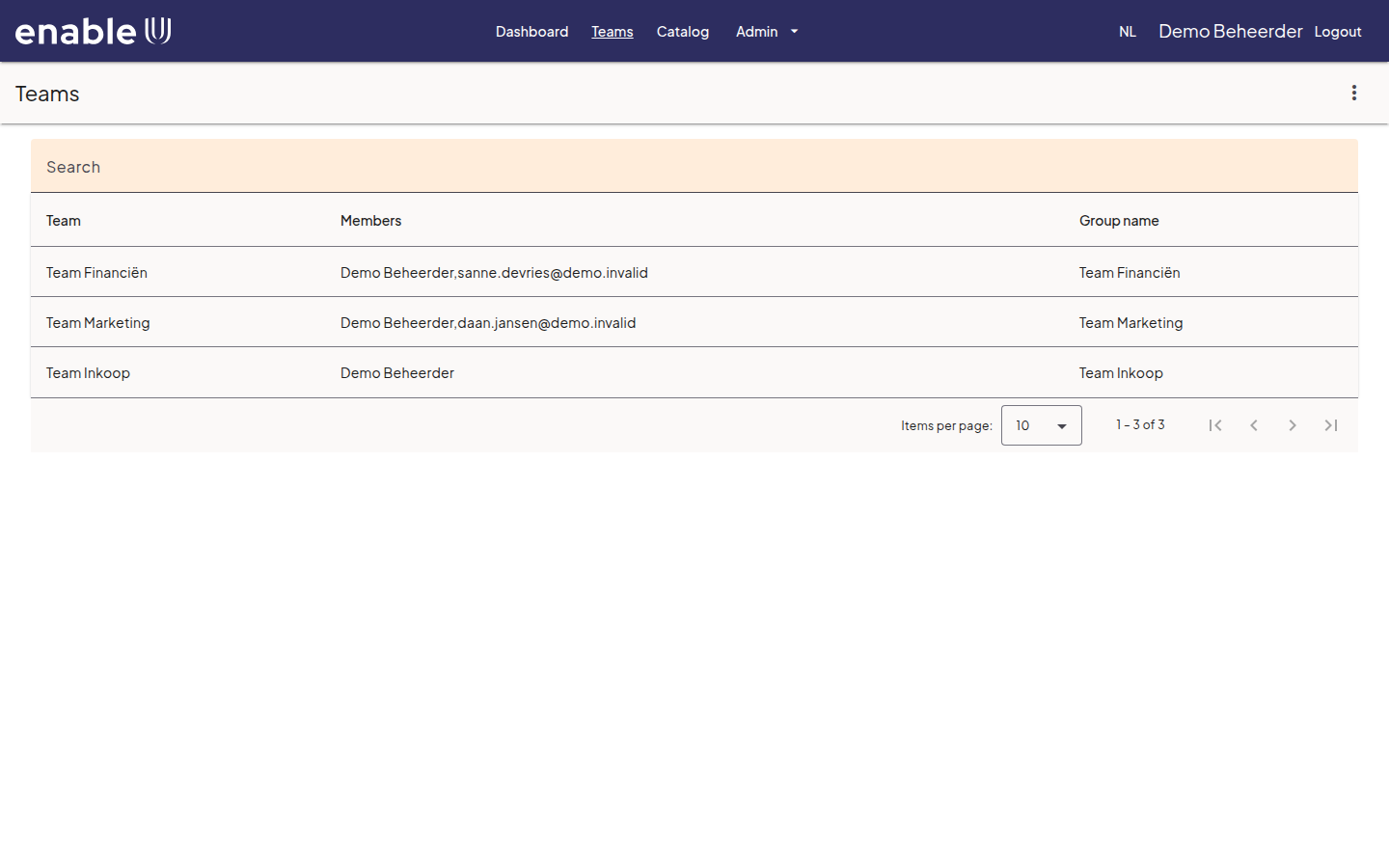
Adding members to a team
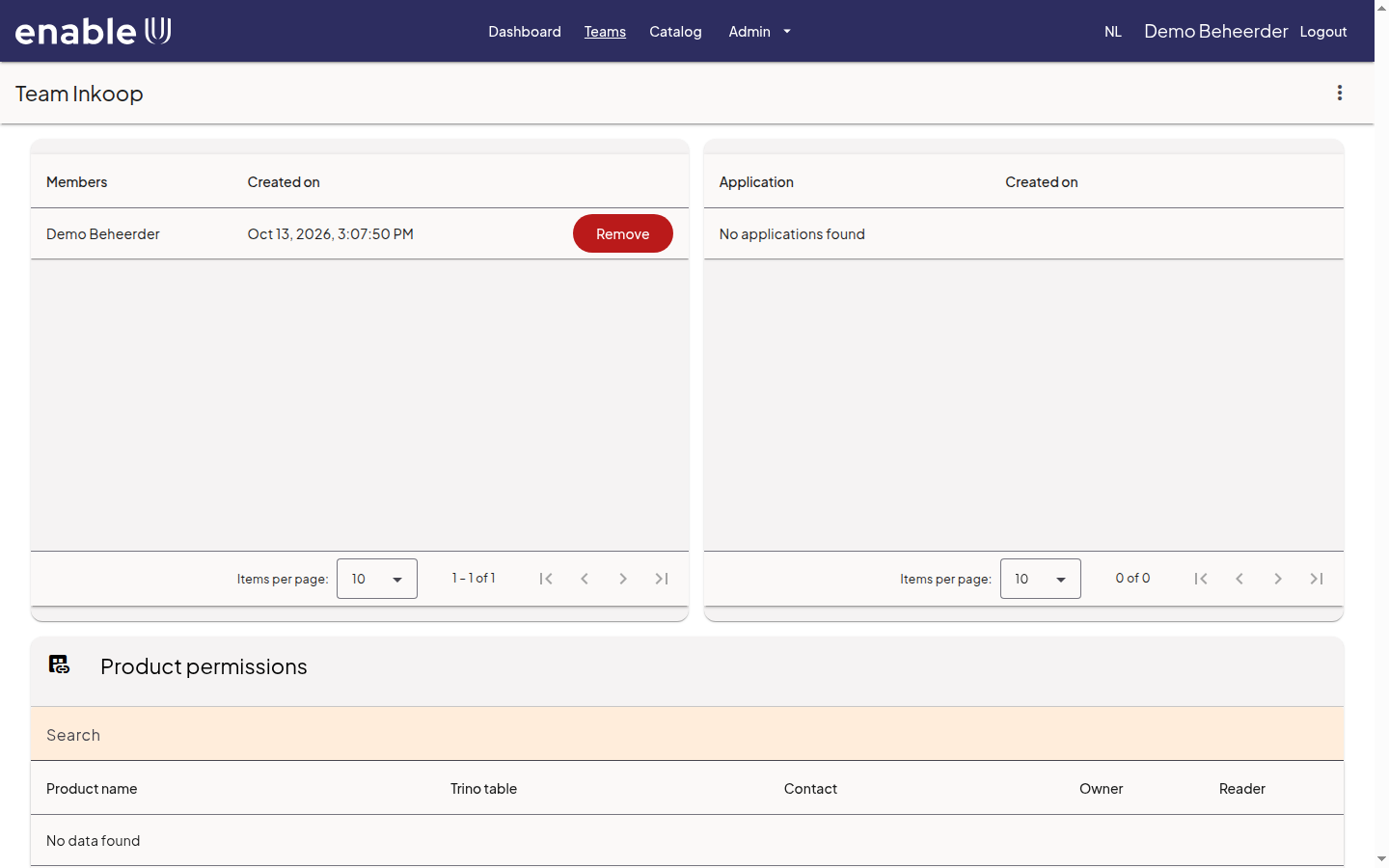
Select the team in the list. The team page shows the members, the applications that belong to the team and the permissions the team has. Open the menu with the three dots and choose Add member.
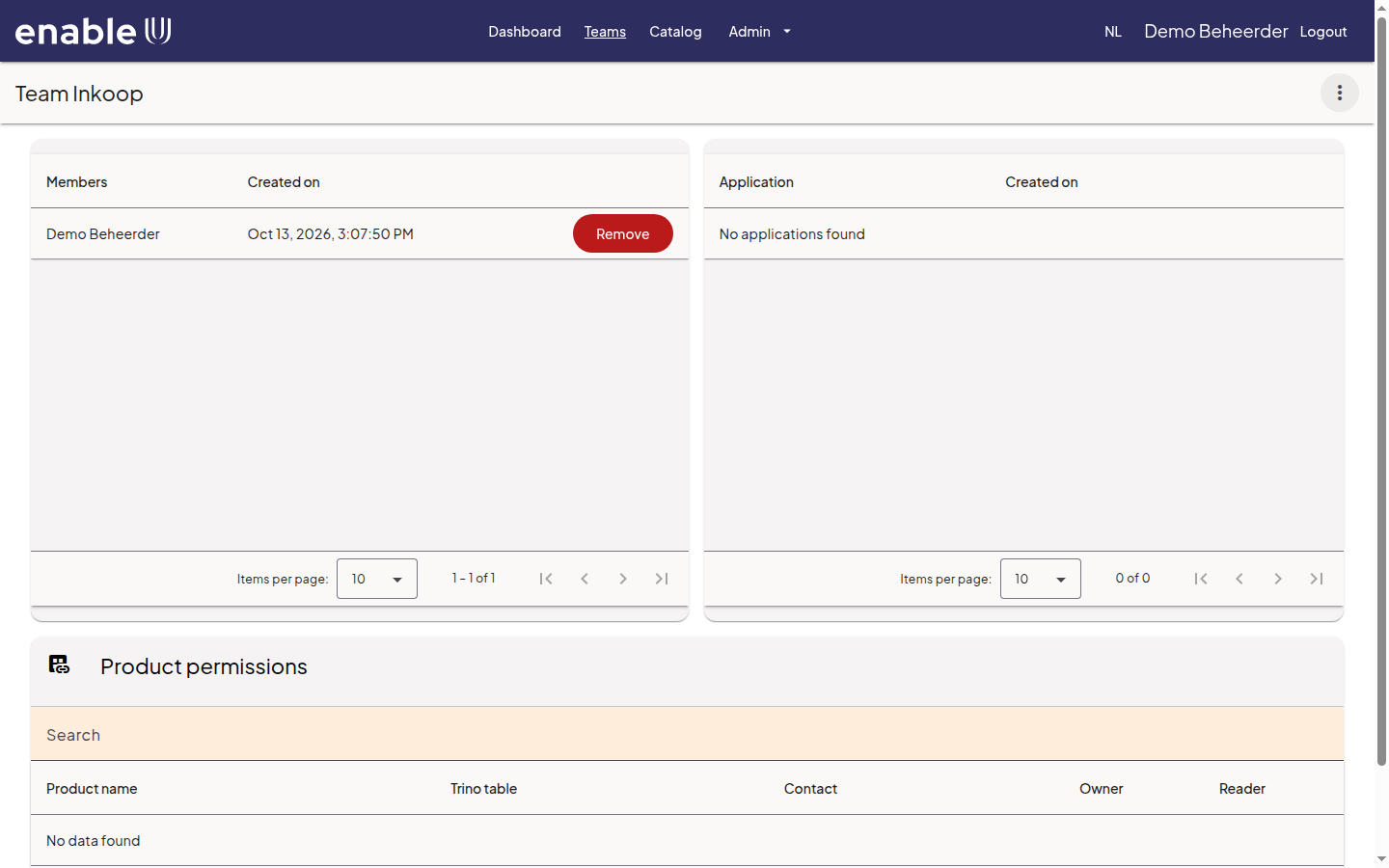
Enter the e-mail address of the user in Member, or the name of a group, and choose Save.
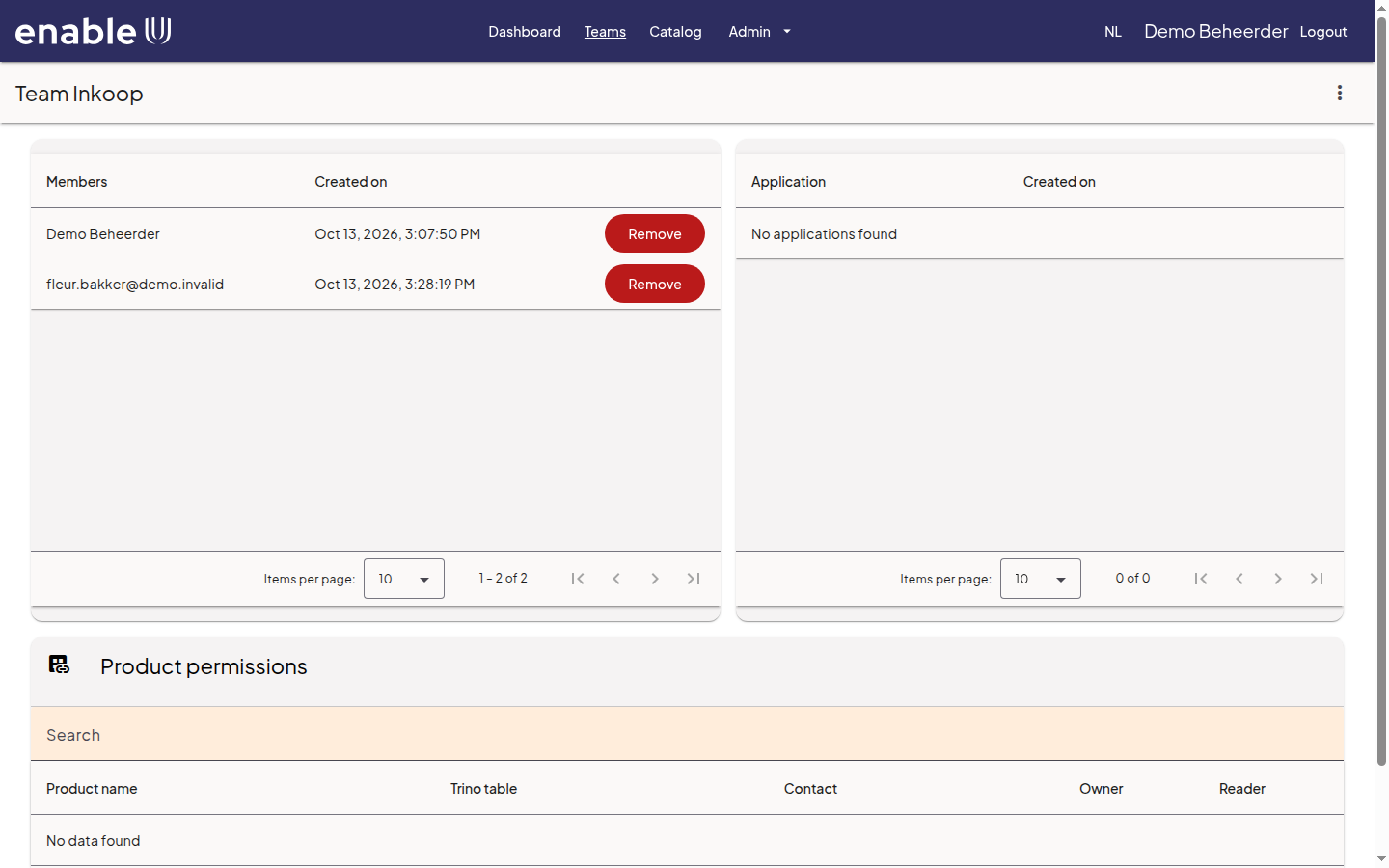
The user is listed as a member. Remove takes a member out of the team again.
Tip
Only members of a team can change its members on the team page, so make sure you are a member of the teams you set up (the person who creates a team is its first member). As an administrator you can also use the card Add to team on the User management page: it adds the user to the member list and the access of the team, whether or not you are a member yourself. Remove from team takes the user out again.
Deleting a team
Choose Delete team in the menu of the team page and confirm. Check first which data products the team owns: a deleted team can no longer manage them.
Unity Catalog settings
Open Admin > Unity Catalog. The page has four parts: Create requests, Creation policy, Container catalogs and Delete catalog.
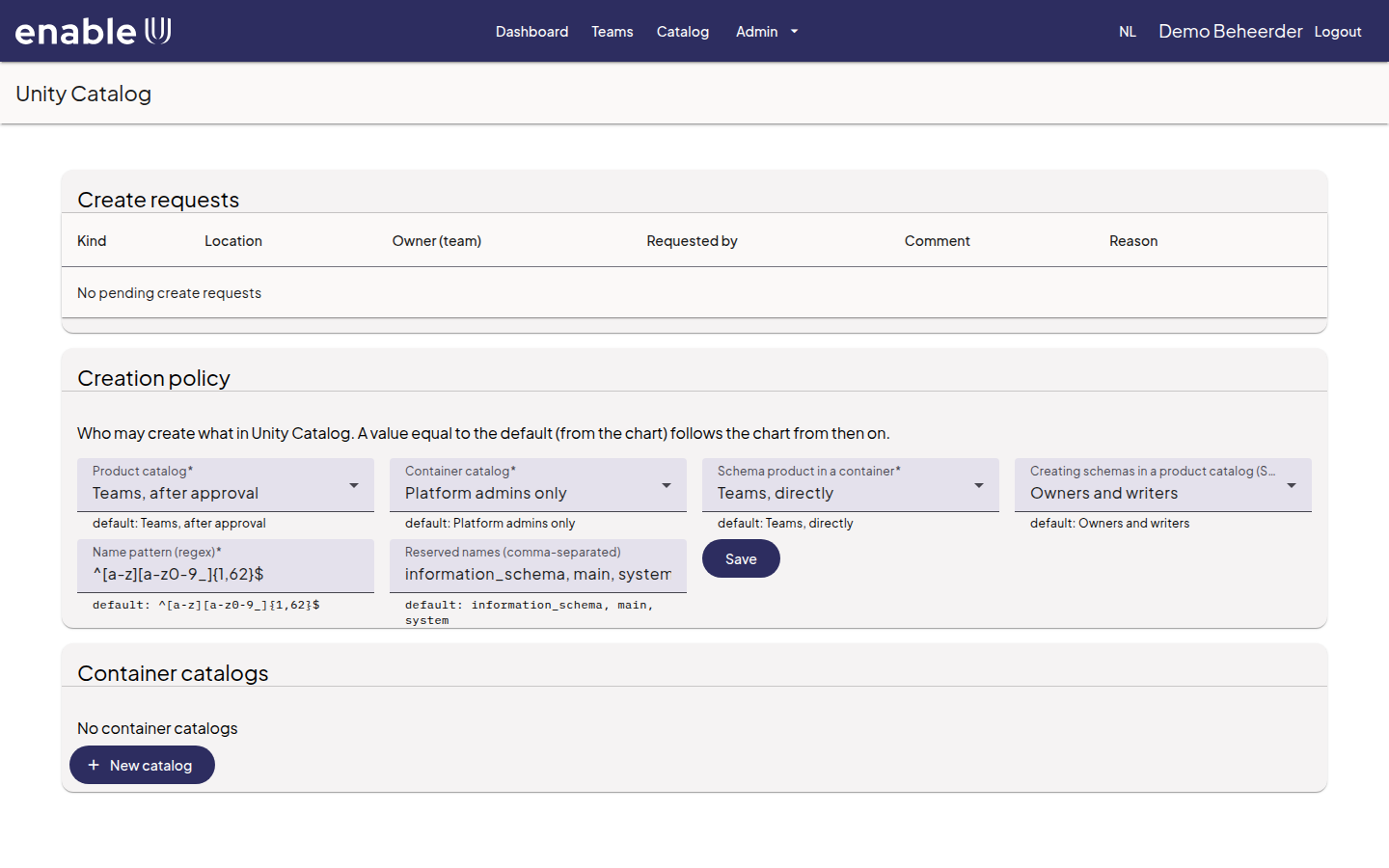
The Creation policy decides who may create what. Each field has a default, shown below the field; a value equal to the default follows the platform’s default from now on.
Field |
What it decides |
Default |
|---|---|---|
Product catalog |
Who may create a catalog that a team owns as a data product. |
Teams, after approval |
Container catalog |
Who may create a container catalog: a catalog of the platform in
which teams make their own schemas as products, for example
|
Platform admins only |
Schema product in a container |
Who may create a schema product in a container catalog. |
Teams, directly |
Creating schemas in a product catalog (Spark) |
Who may create schemas with Spark in a catalog that a team owns. |
Owners and writers |
Two more fields restrict names. Name pattern (regex) is the pattern
every catalog and schema name must match (by default: lower-case letters,
digits and underscores, starting with a letter, 2 to 63 characters).
Reserved names is the list of names nobody may use (by default
information_schema, main and system). Choose Save to save
your changes.
Under Container catalogs you create container catalogs (New catalog) and name their stewards (Add steward): the people who look after a container.
Approving or rejecting a request to create a catalog
When the policy says after approval, a request to create a catalog waits for you in Create requests. Teams make such a request with New catalog, see Data engineer journey.
Open Admin > Unity Catalog. The request is listed with the kind (Kind), the name (Location), the owner team, who asked (Requested by) and the reason the team gave.
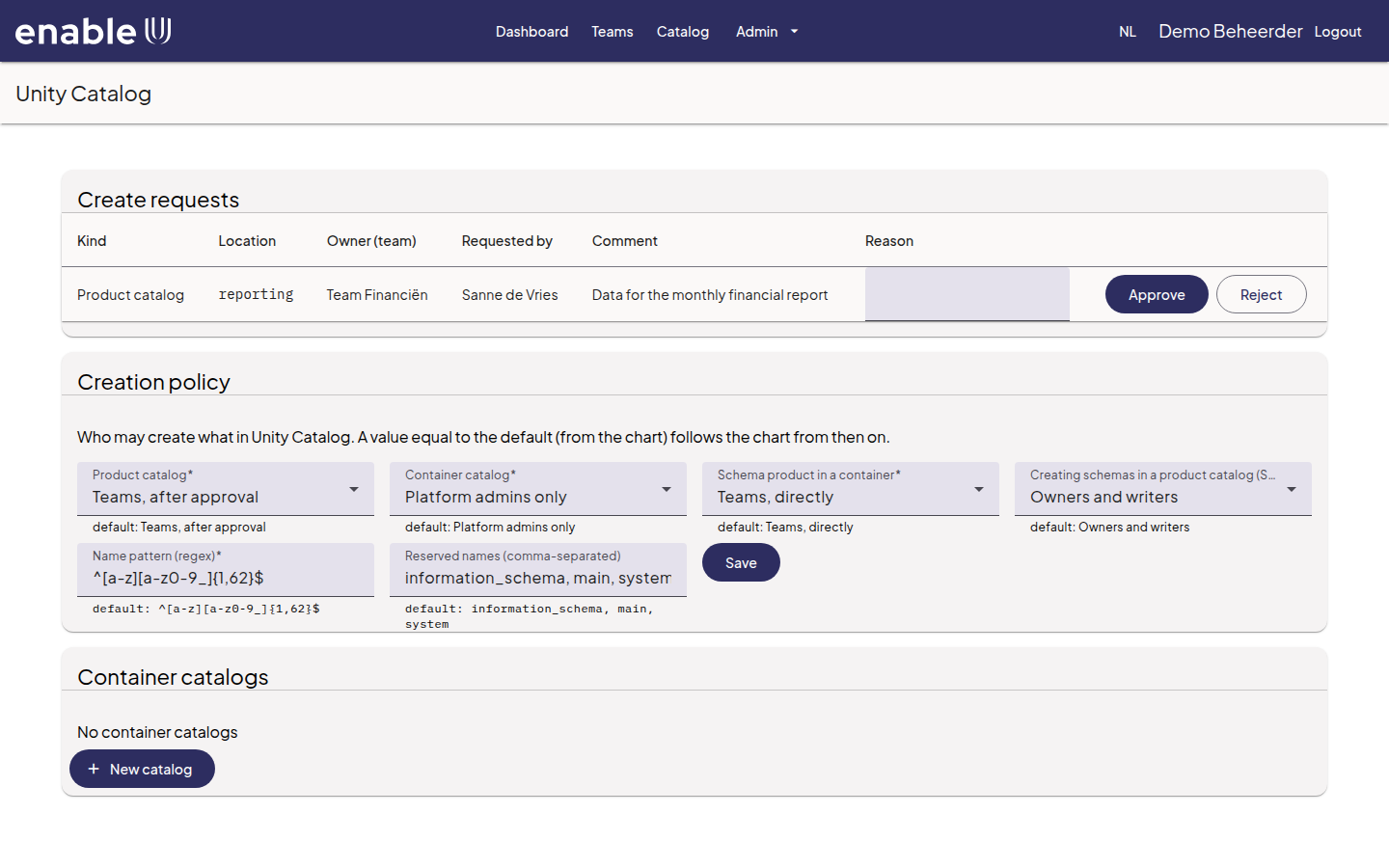
Check the name and the owner team. Choose Approve or Reject. You can write a reason in the field Reason first; the requester sees it.
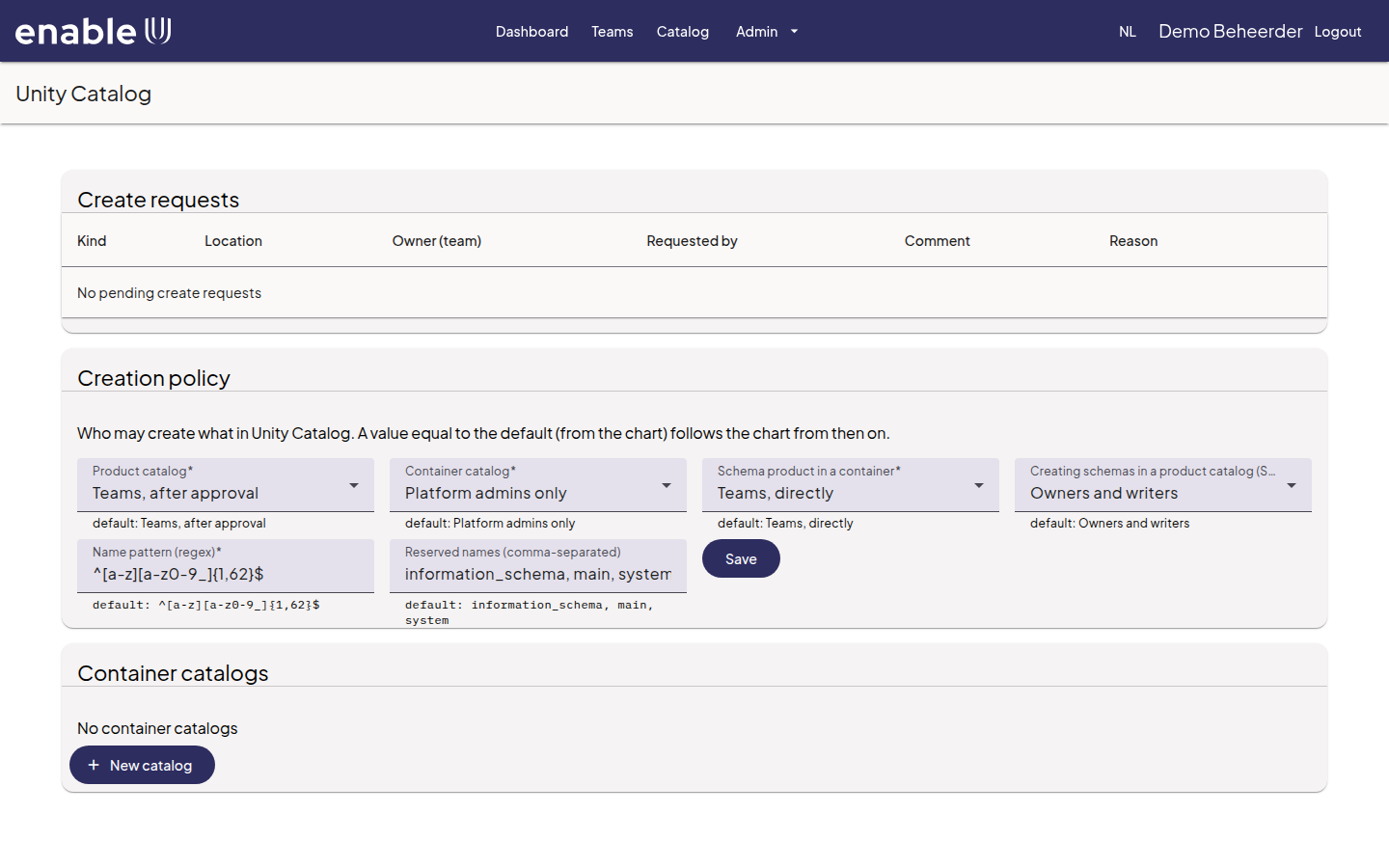
After you approve, the page says Approved and created. The catalog now exists and the owner team can start filling it.
Deleting a catalog
Open Admin > Unity Catalog and go to the card Delete catalog. Use it to remove a catalog that nobody needs any more, for example after a trial.
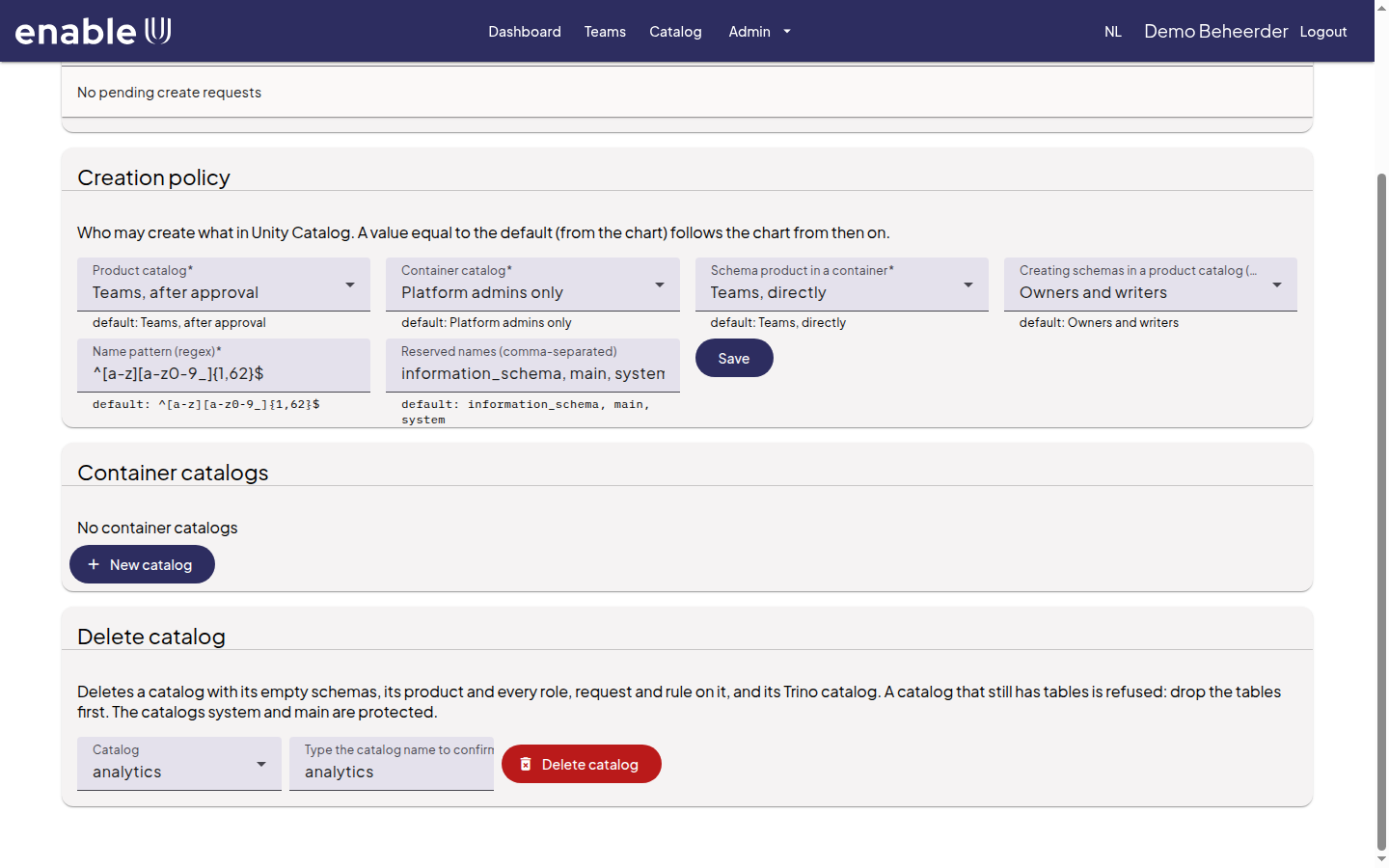
Choose the catalog in Catalog.
Type the name of the catalog again in Type the catalog name to confirm. The button Delete catalog stays grey until the name is exactly right.
Choose Delete catalog. The page says that the catalog is deleted.
Deleting a catalog removes the catalog with its empty schemas, its data product and every role, request and rule on it, and its catalog in the SQL endpoint (Trino). Know the limits:
A catalog that still has tables is not deleted. The message names the tables. Drop them first, for example in a notebook; Security Center never deletes data itself.
The catalogs
systemandmainare protected and cannot be deleted here. The same goes forinformation_schema.Deleting cannot be undone.
Synchronizing the Unity Catalog
Open Admin > Product sync and choose Sync Unity Catalog. The synchronization registers catalogs that exist in Unity Catalog but that Security Center does not know yet as unassigned products, and makes the rights on each catalog match the approved access requests for the current members of each team.
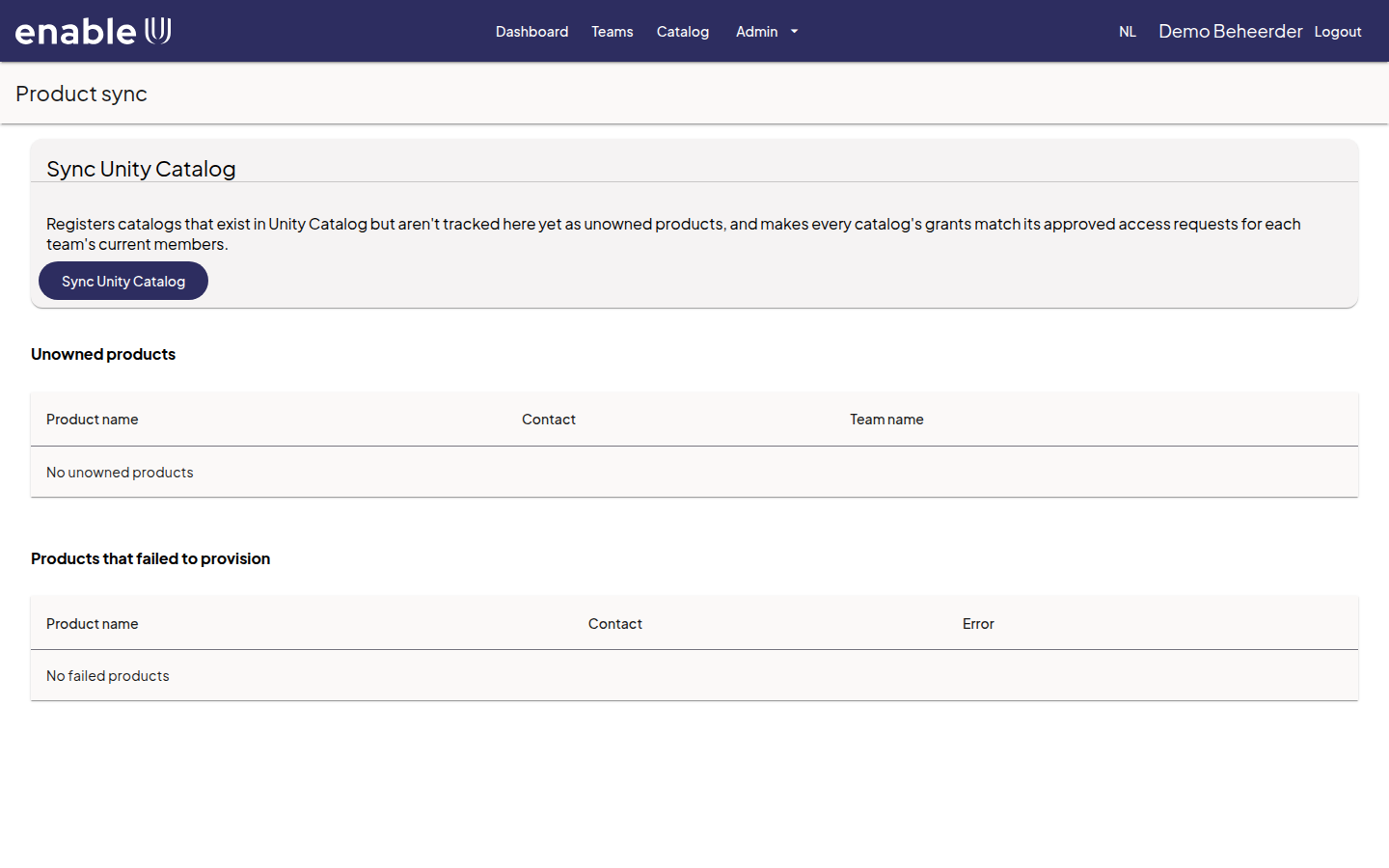
Run it when something looks out of step, for example after the SQL endpoint was restarted or after someone created catalogs outside Security Center.
Afterwards read the result message: it reports what was newly discovered, what is missing and what failed.
Unowned products lists catalogs that no team owns yet; a team can adopt them. Products that failed to provision lists products that failed to provision, with the error message; you can delete them there.
Checking who has access to something
Open the Catalog, select any catalog, schema or table and open the tab Access. It shows where the access comes from along the path from the catalog down to the item, and lists every team and role that has access, including access inherited from higher up in the tree. See Data engineer journey.