Introduction
What the platform is
The Sovereign Data Platform is a dedicated data environment for your organization. It gives you three things, behind one sign-in:
Notebooks: interactive Python and Spark notebooks (JupyterHub) to explore, clean and transform data.
SQL and BI: a SQL endpoint (Trino) that BI tools such as Power BI and your own notebooks use to query the same data.
Access governance: Security Center, where teams publish data products, request access to each other’s data and decide who may see which rows and columns.
Production schedules run on Apache Airflow, a separate optional product. See Notebooks and SQL for how it fits in.
Roles
Everyone who signs in is a platform user. Two roles matter in this manual:
Role |
What you can do |
|---|---|
Administrator |
Everything a data engineer can, plus the Admin menu: users and roles, teams, platform settings, approving requests to create catalogs, and synchronizing the catalog. |
Data engineer |
Browse the catalog, request access, create and manage your team’s data products, share data with other teams and work with the data in notebooks and SQL. |
Your addresses
Every customer gets three addresses. Replace <customer> with the name of
your organization:
Address |
Used for |
|---|---|
|
Security Center: the Catalog and access management. |
|
JupyterHub: your notebooks. |
|
Trino: the SQL endpoint for BI tools. |
Signing in
All three addresses use the same account. You sign in through Keycloak, the identity service of the platform. Your e-mail address is your user name.
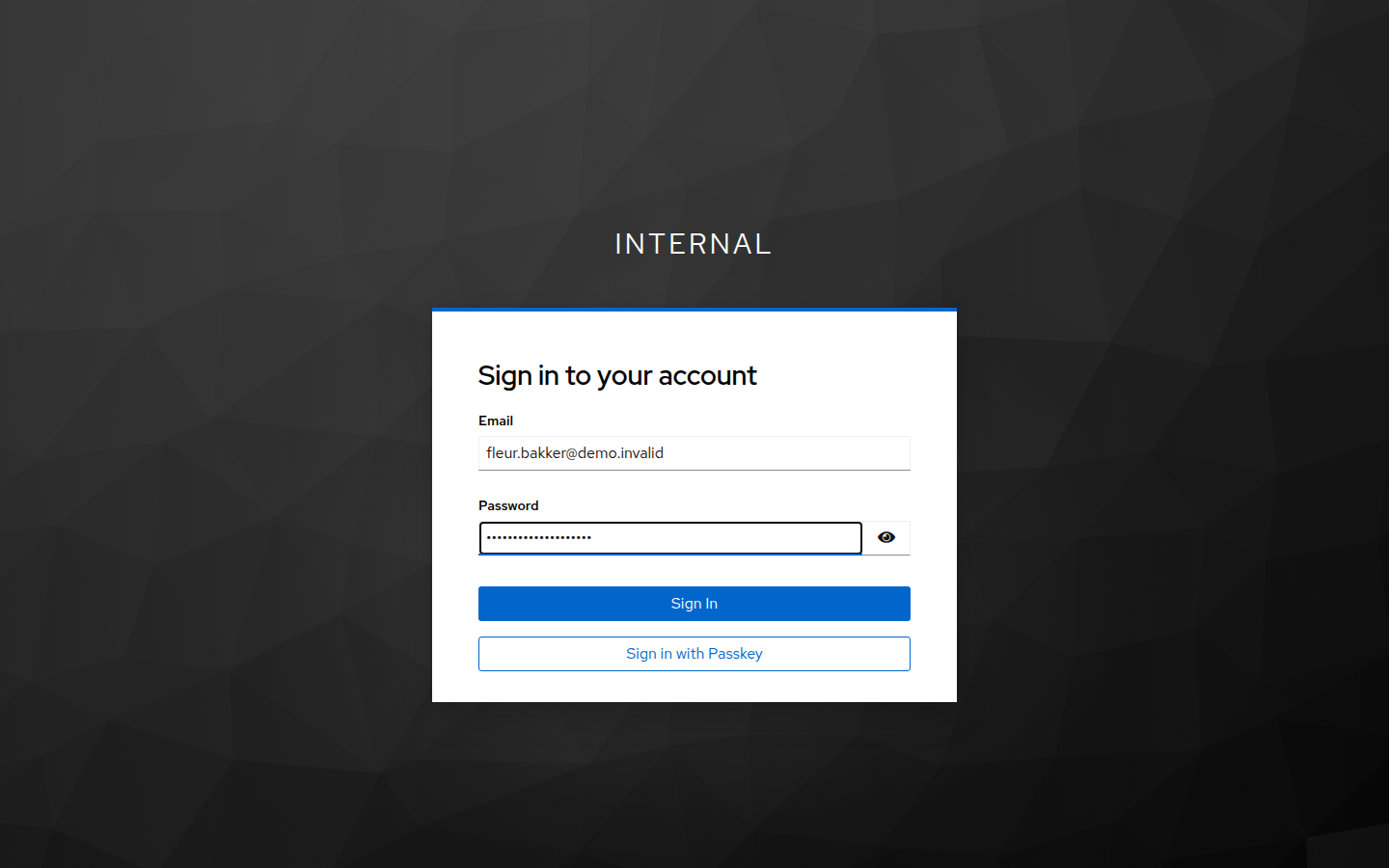
Open one of the addresses. You are sent to the Keycloak sign-in page. Enter your e-mail address and your password and choose Sign In.
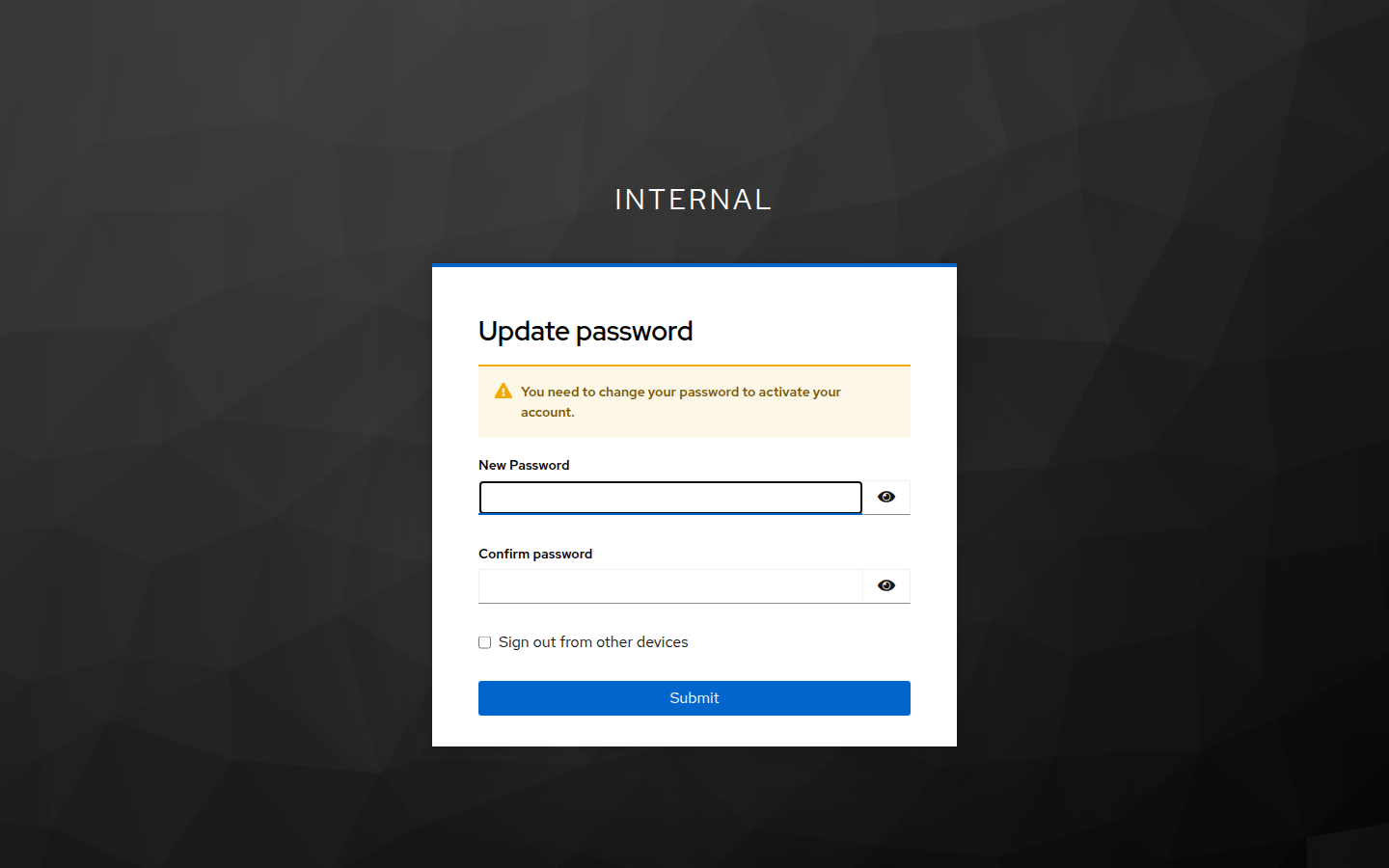
The first time, you sign in with the temporary password your administrator gave you. Keycloak asks you to choose a new password: enter it twice and choose Submit.
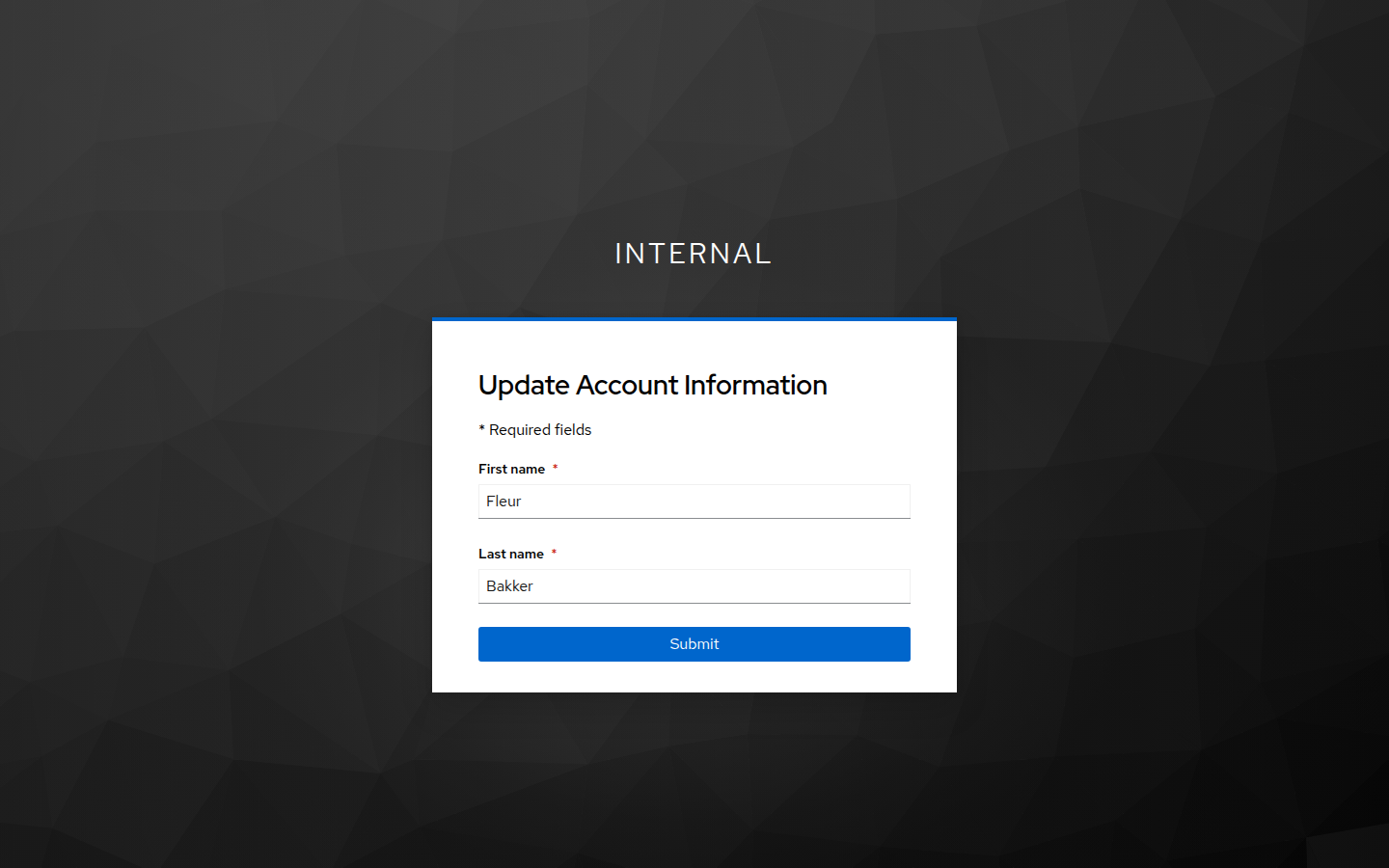
Next, Keycloak asks for your first and last name. Fill them in and choose Submit. You are taken back to the application you started from.
Tip
Once you are signed in to one application you are normally signed in to the others. Logout in an application signs you out of that application; sign out of each one you used when you work on a shared computer. Never share your password and never paste an access token anywhere.
The language of the screens
Security Center is available in Dutch and English. Dutch is the default.
Switch with the button NL or EN in the top bar, or add ?lang=en
(or ?lang=nl) to the address; Security Center remembers your choice.
JupyterHub, Airflow and the sign-in pages are in English. This manual always
names a label the way it appears in the language of the manual.