Notebooks and SQL
This chapter shows how you work with the data: in a Python and Spark
notebook in JupyterHub, and with SQL. The examples follow the data product
from Data engineer journey: the catalog finance and its table
finance.facturen.regels.
Signing in to JupyterHub
Open
https://<customer>.dataprocessing.datafoundation.euand choose Sign in with OAuth 2.0.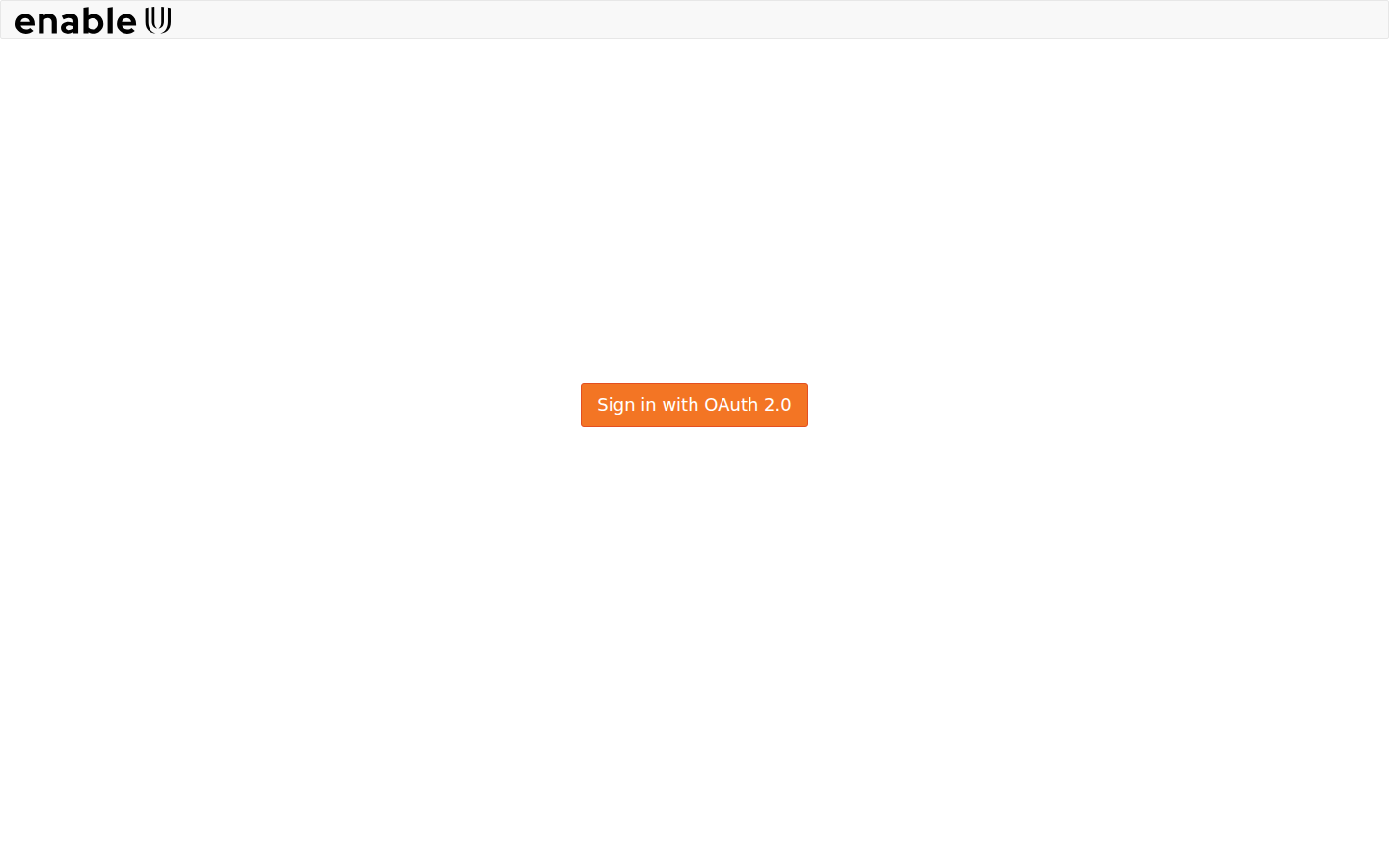
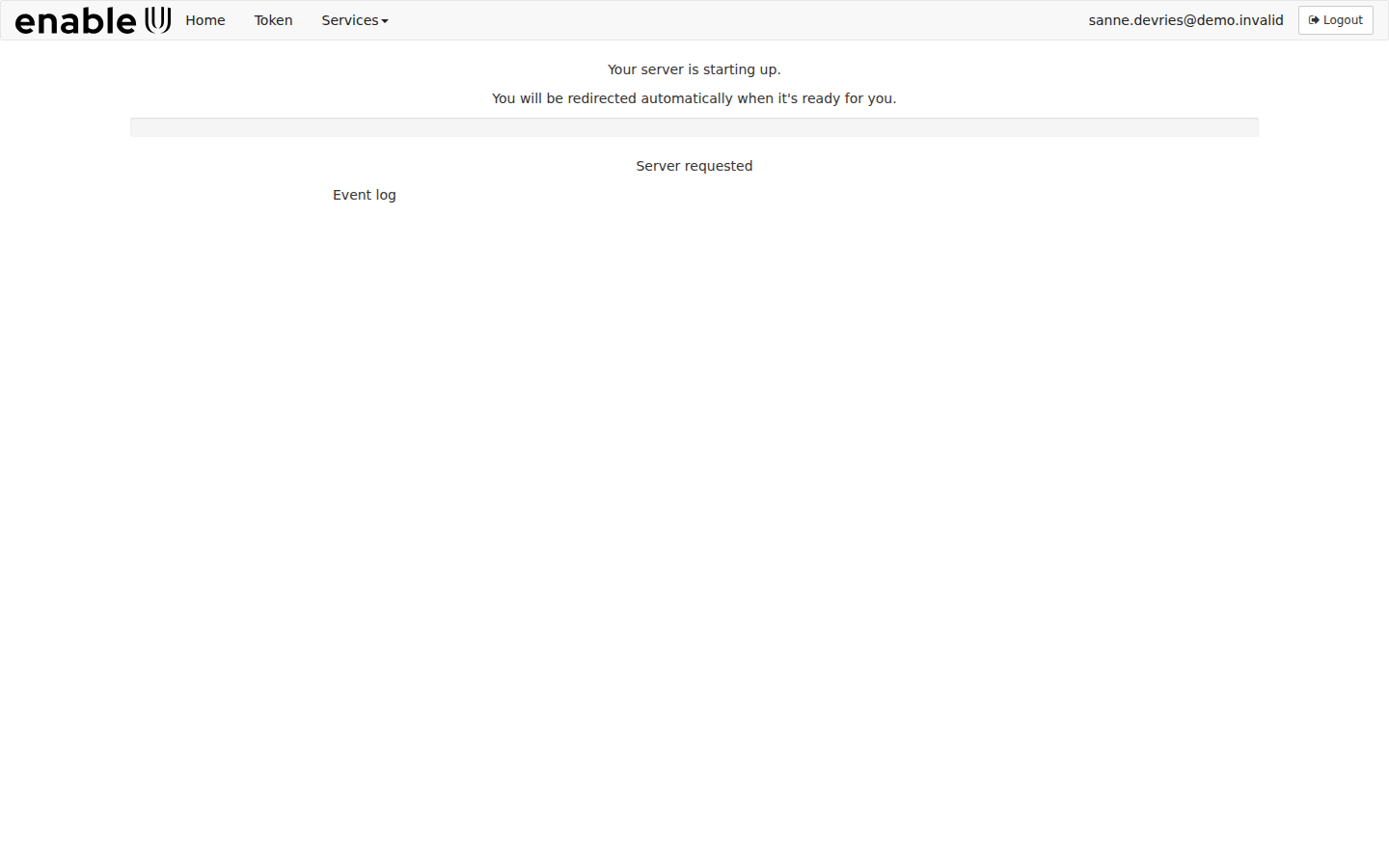
Sign in with your platform account (see Introduction). JupyterHub starts your own notebook server. The first time this takes a few minutes: the page says Your server is starting up and opens JupyterLab by itself when it is ready.
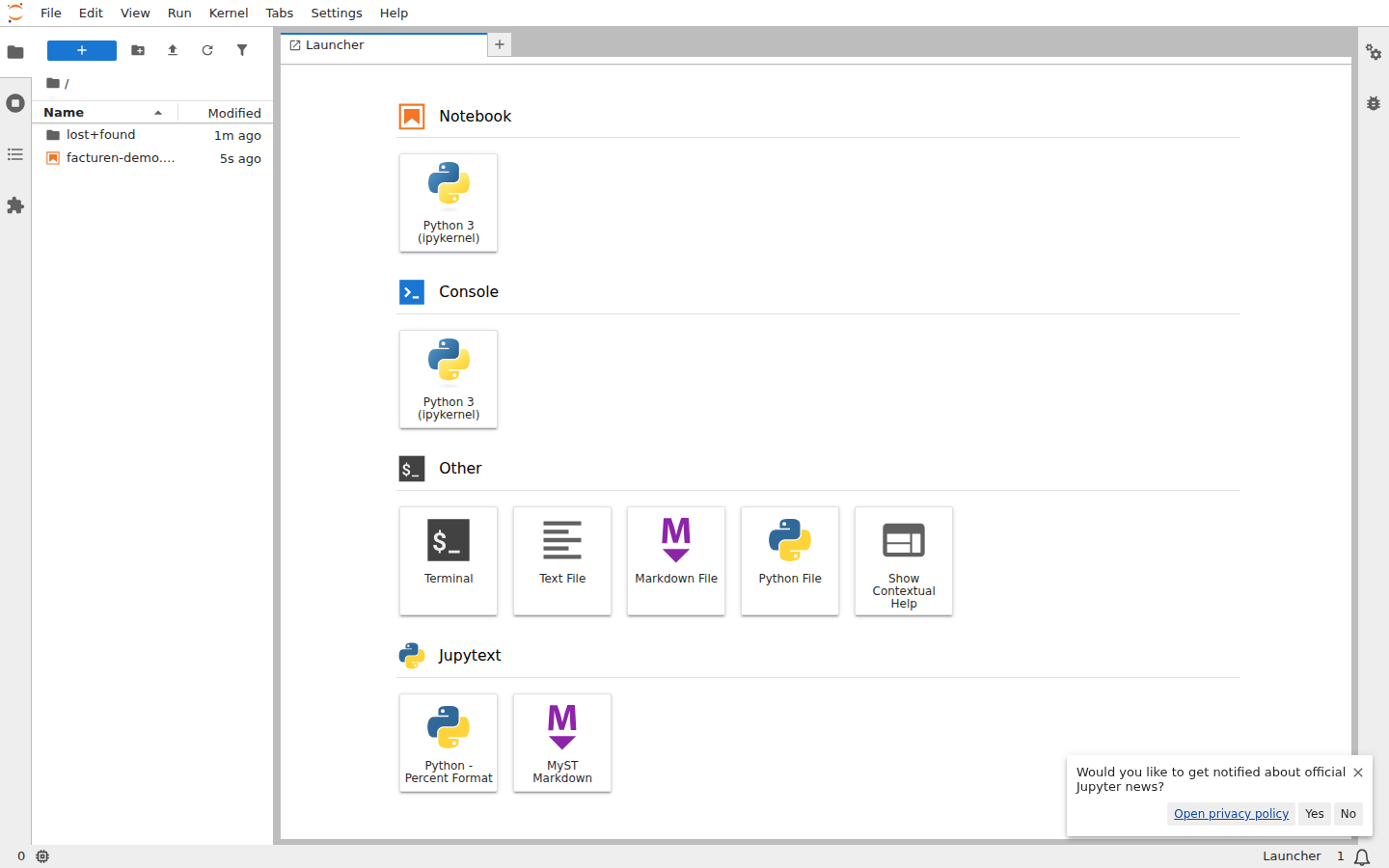
JupyterLab opens with the file browser on the left and the launcher on the right. Choose Python 3 (ipykernel) under Notebook to start a new notebook.
Note
Your notebook server stops by itself after an hour without activity. Your notebooks stay in your own home folder and are there when the server starts again. The number of servers that run at the same time is limited: if JupyterHub says it is at capacity, try again in a few minutes. To stop your server yourself, choose File > Hub Control Panel > Stop My Server.
Your Spark session
In every notebook a Spark session called spark is ready; it starts the
first time you use it. The session already knows the catalogs you may use,
so you refer to data with the three-part name catalog.schema.table.
Without a catalog, Spark uses main.
Note
Your notebook has no direct access to the files of the data lake. Spark reads and writes them through the platform, which checks for every file whether your team may use it. You never have to open the lake yourself.
Creating a schema and a table
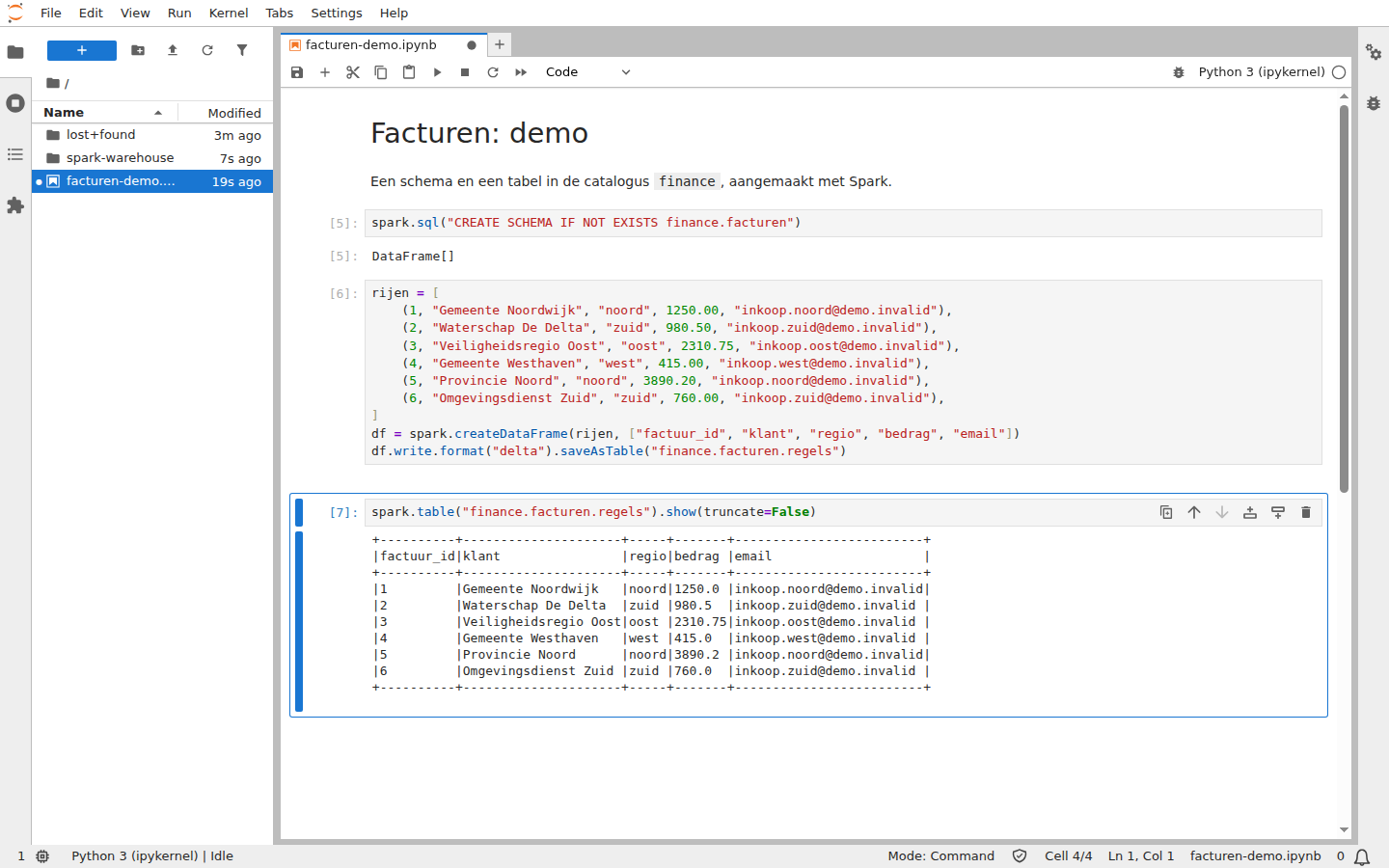
If you own a catalog, or you hold the role writer on it, you can create schemas and tables in it with Spark. Create the schema first, then the table. Always write tables in the Delta format:
spark.sql("CREATE SCHEMA IF NOT EXISTS finance.facturen")

rijen = [
    (1, "Gemeente Noordwijk", "noord", 1250.00, "inkoop.noord@demo.invalid"),
    (2, "Waterschap De Delta", "zuid", 980.50, "inkoop.zuid@demo.invalid"),
]
df = spark.createDataFrame(rijen, ["factuur_id", "klant", "regio", "bedrag", "email"])
df.write.format("delta").saveAsTable("finance.facturen.regels")

spark.table("finance.facturen.regels").show()
Run a cell with Shift+Enter, or run the whole notebook with Run > Run All Cells.
The table now appears in the catalog tree of Security Center, owned by your
team (refresh the page if you do not see it yet). For ingestion with the
metadata-driven framework, Platform().write_to_table and
upsert_table write to the same tables, see Scamander MDIF.
Warning
Without .format("delta") Spark tries to create a Parquet table and
the platform refuses it with the message “Unity Catalog does not support
non-Delta managed table”. See Troubleshooting and FAQ.
Note
A catalog or schema that someone creates while your notebook is running is not known to your session yet. Restart the kernel (Kernel > Restart Kernel) to see it.
Reading data you have filtered access to
You read a table that your team only holds a filtered role on exactly like
any other table. The platform applies the row filter and the column mask for
you. In this example the team Marketing holds the role regio_noord: only
the rows of the region noord, with the column email masked.
spark.table("finance.facturen.regels").show(truncate=False)

spark.sql("""
    SELECT regio, count(*) AS facturen, round(sum(bedrag), 2) AS totaal
    FROM finance.facturen.regels
    GROUP BY regio
""").show()
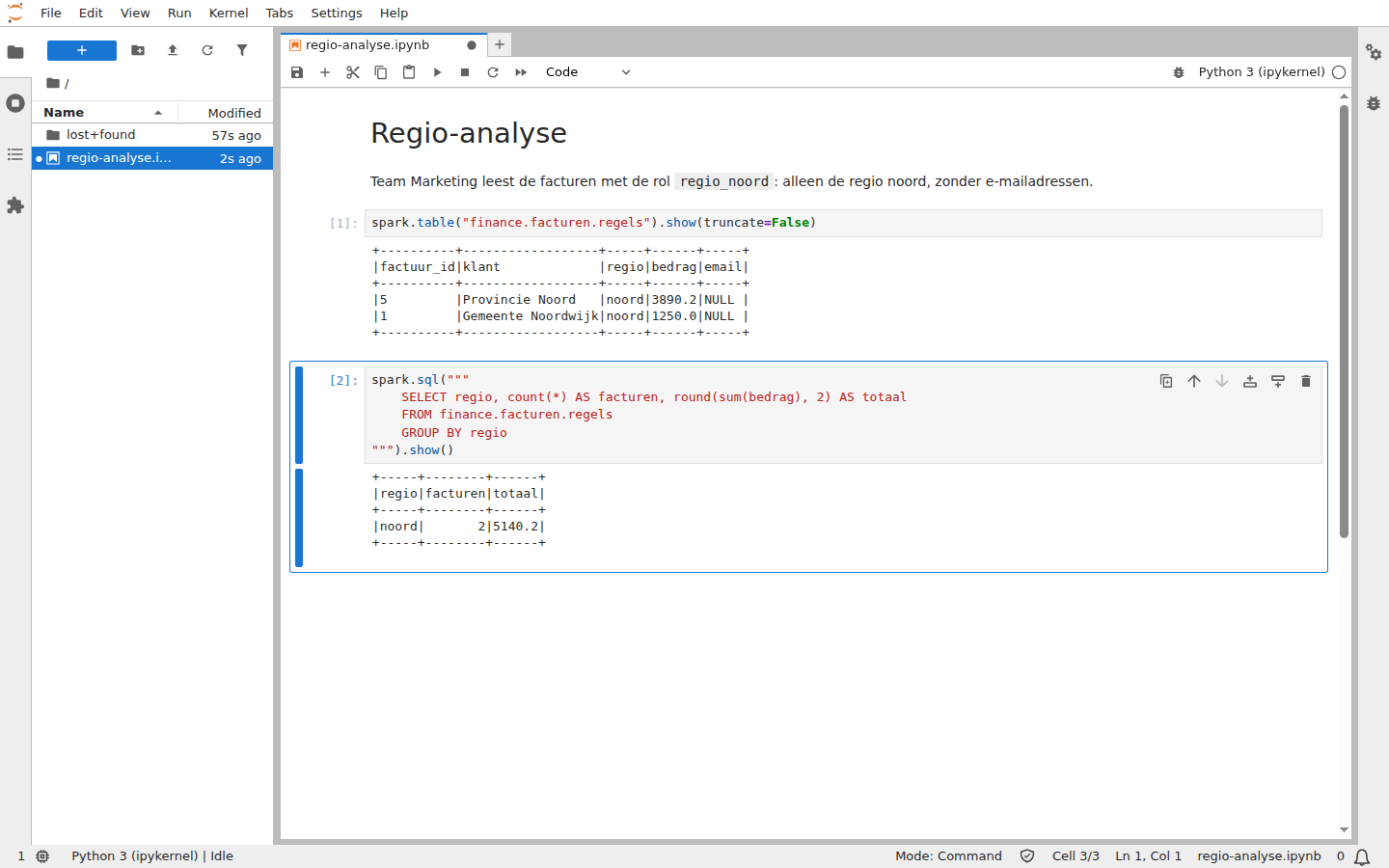
Totals and counts only cover the rows you may see. You cannot write to a table you hold a filtered role on.
SQL with Trino and BI tools
BI tools and other SQL clients connect to the Trino address of your
organization with your platform account. They see the same catalogs and the
same access rules as you. In a notebook, Trino is also available as
read-only Spark catalogs whose names start with trino.
The connection settings are in Security Center: choose the tile Trino on the dashboard. The dialog Connect to Trino shows the host, the port, the default catalog, a JDBC URL and a Python example, each with a copy button.
To query from a SQL client on your own computer, use one that has a Trino driver, for example DBeaver:
Install DBeaver Community.
Choose Database > New Database Connection and pick Trino.
Choose URL and paste the JDBC URL from the dialog Connect to Trino. Fill in your platform user name and leave the password empty. DBeaver downloads the driver the first time.
Choose Test Connection or Finish. A browser opens: sign in with your platform account. After that the catalogs appear in the navigator, with the same access as in Security Center.
The Trino CLI works the same way:
trino --server https://<customer>.trino.datafoundation.eu
--external-authentication
.
SQL Server Management Studio (SSMS) and Azure Data Studio cannot connect:
they only talk to Microsoft SQL Server, and Trino is not a SQL Server.
Installing a Trino ODBC driver does not change this: SSMS cannot use other
drivers. The
Trino web page (https://<customer>.trino.datafoundation.eu) shows the
queries that run, not the catalogs and tables; use a SQL client to browse
those. For Power BI, see your administrator.
Scheduled notebooks with Airflow
To run a notebook on a schedule, use Apache Airflow with the
SparkNotebookOperator, see Airflow. A scheduled notebook
runs as its own service identity, which needs access to the data like any
team does. Airflow is an optional product; ask your administrator for its
address and whether it runs for your organization.
Open Airflow and choose Sign In with keycloak. You sign in with the same platform account as everywhere else.
Dags lists the workflows that Airflow knows. A new Dag starts paused: switch it on with the toggle at the start of the row. The list shows Active Dags by default; choose All to see the paused ones too. A red number next to the number of Dags means that some files could not be loaded; open it to read why.