Onboarding: Microsoft Entra ID
Your Airflow instance can be secured either through the platform’s shared Keycloak realm (see Getting started: Sovereign Data Platform), or, if your organization prefers to manage access from its own Azure tenant, through Microsoft Entra ID directly. Here’s how to onboard Entra ID.
Customer name
e.g. acme
Copy
Copied
Your Airflow URL:
Dev
Prod
Prerequisites
Onboarding must be done by an administrator holding the Azure role Cloud Application Administrator in your organization’s tenant.
Onboarding instructions
Open your Airflow URL —
https://<your-organization>.airflow.datafoundation.eu. This shows the sign-in screen: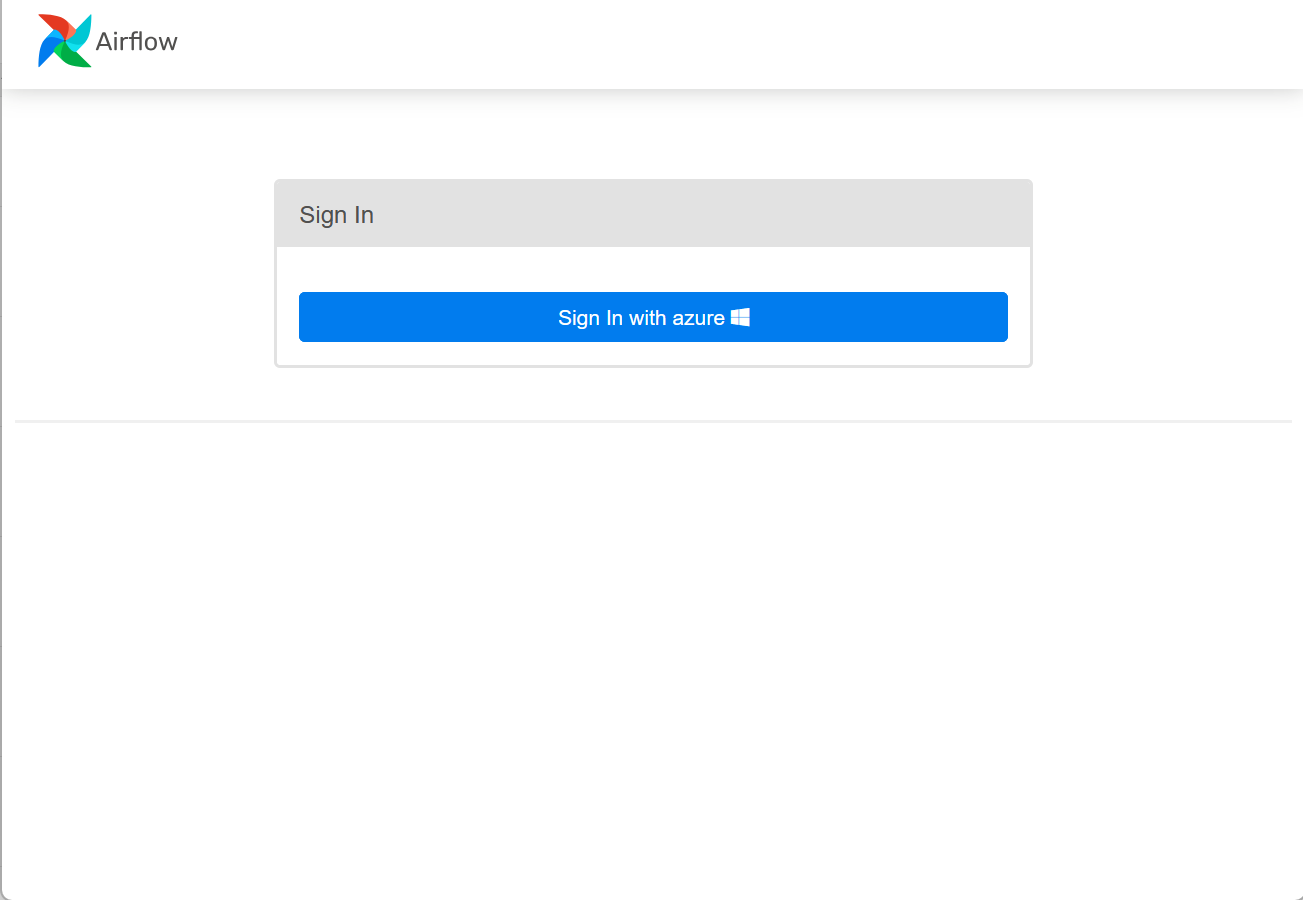
Click Sign In with azure. Choose the account with the Cloud Application Administrator role.
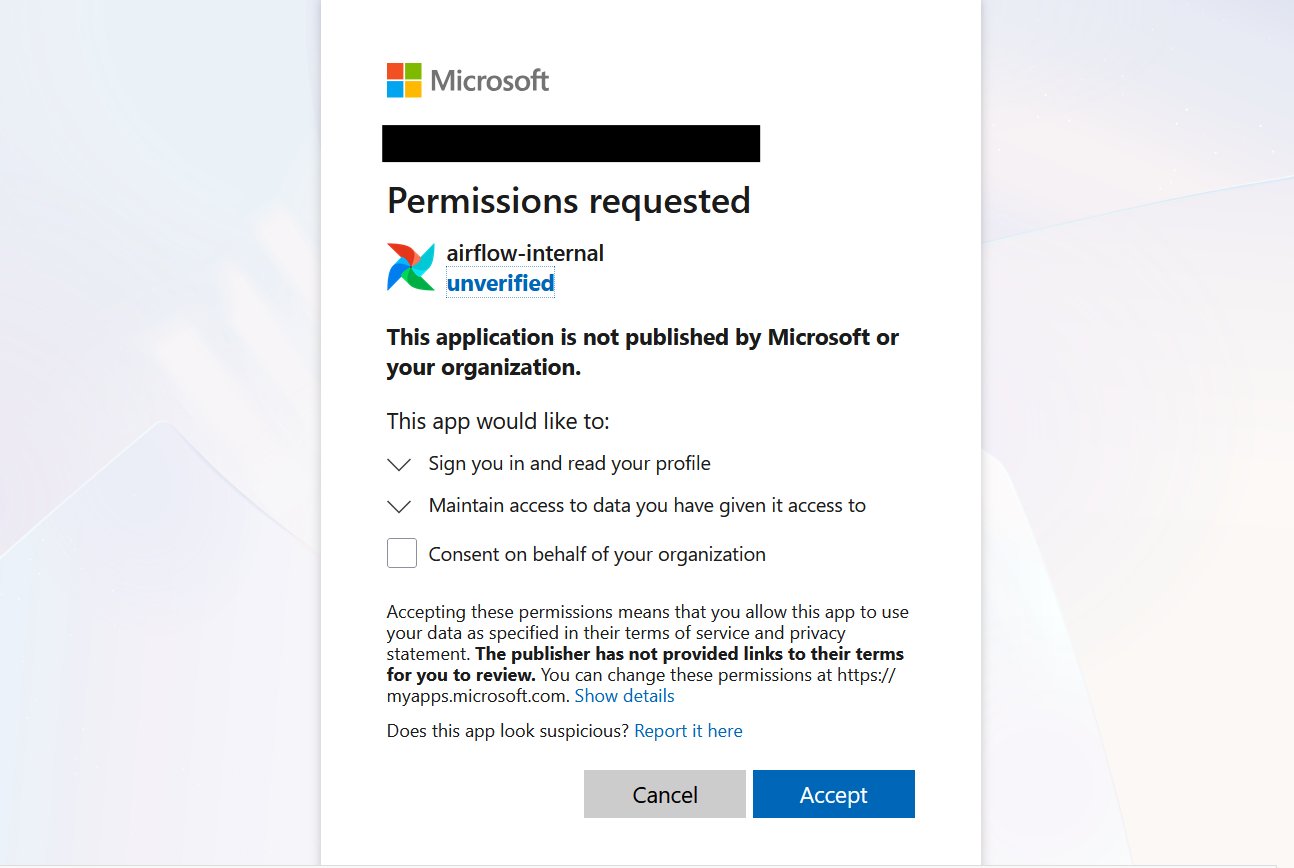
Select the checkbox Consent on behalf of your organization, then click Accept to grant the permissions request:
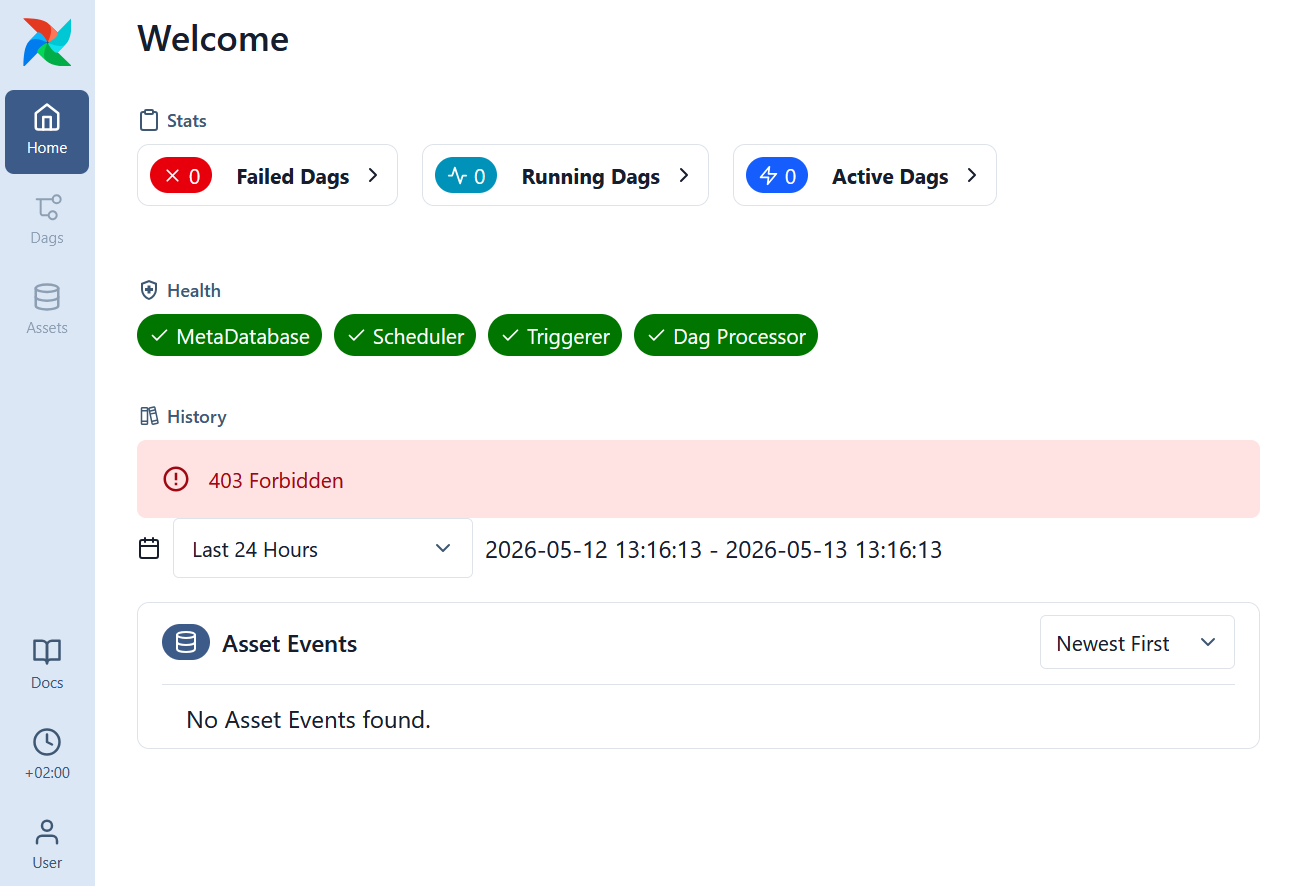
After this first login, Airflow shows 403 Forbidden. That’s expected, since the account doesn’t have any role assigned within Airflow yet:
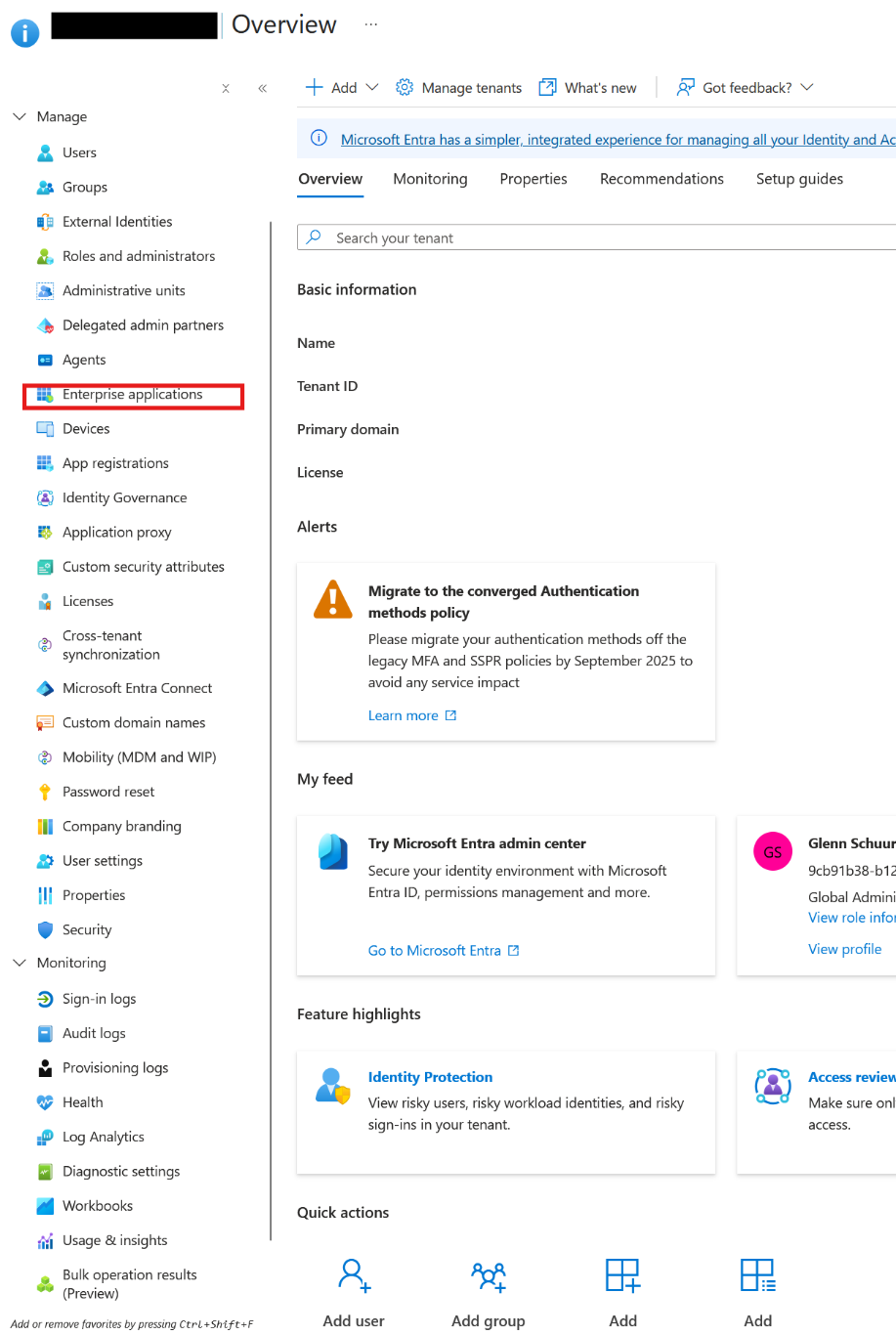
Open portal.azure.com using the same Cloud Application Administrator account. Open Microsoft Entra ID, then Enterprise Applications:
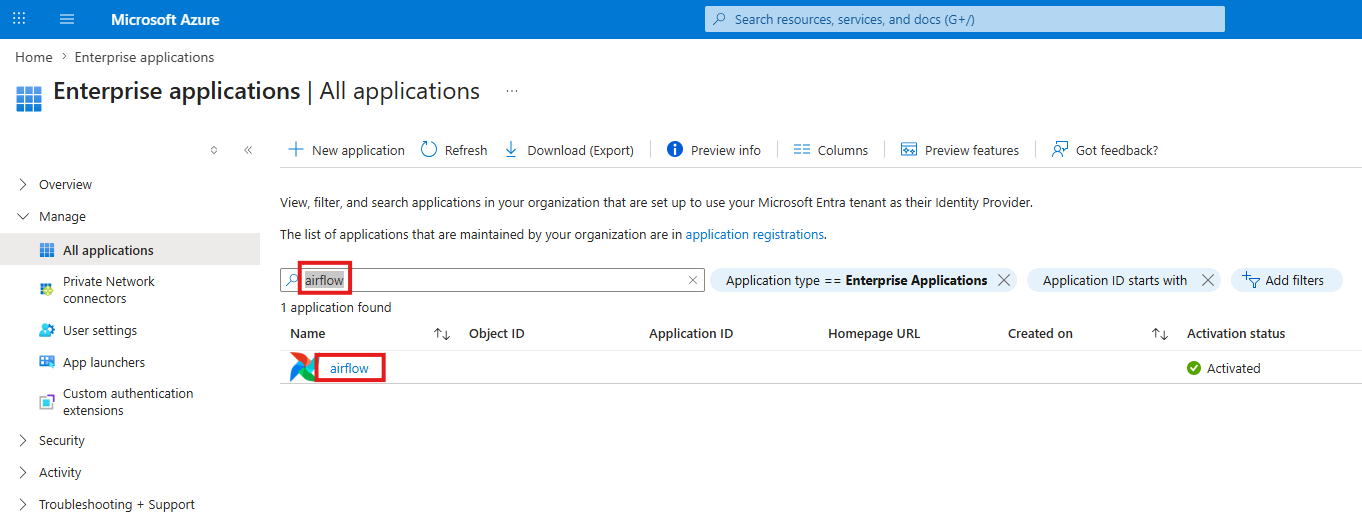
Search for airflow, click the Airflow application, then click Manage → Users and groups:
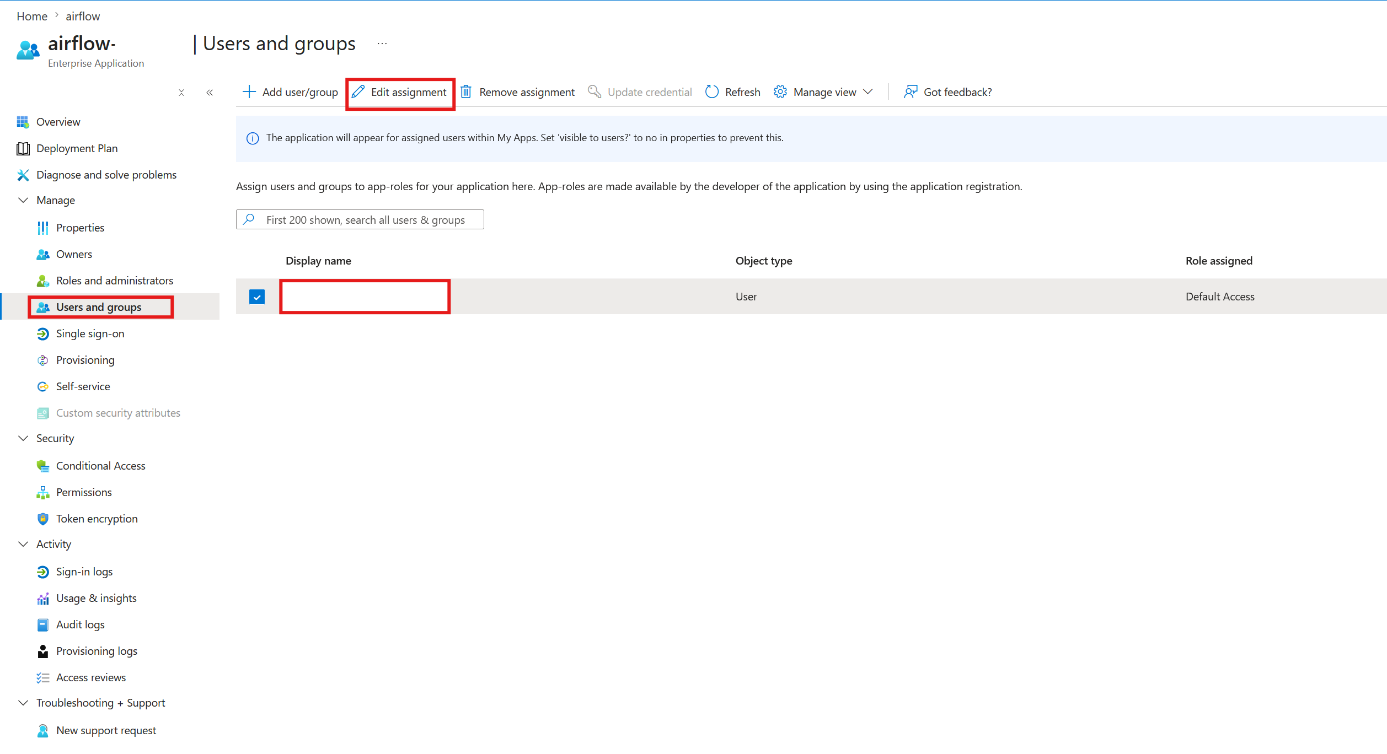
Your account has the role Default Access (see “Role assigned”). Select the checkbox for the user, then click Edit assignment:
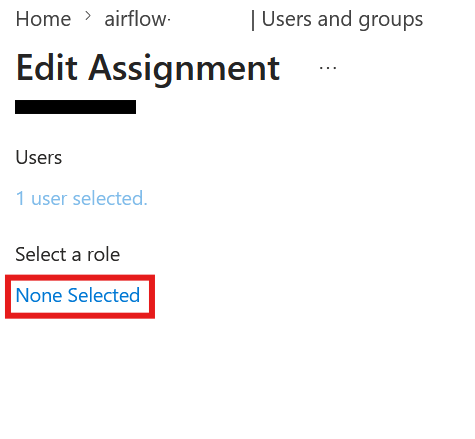
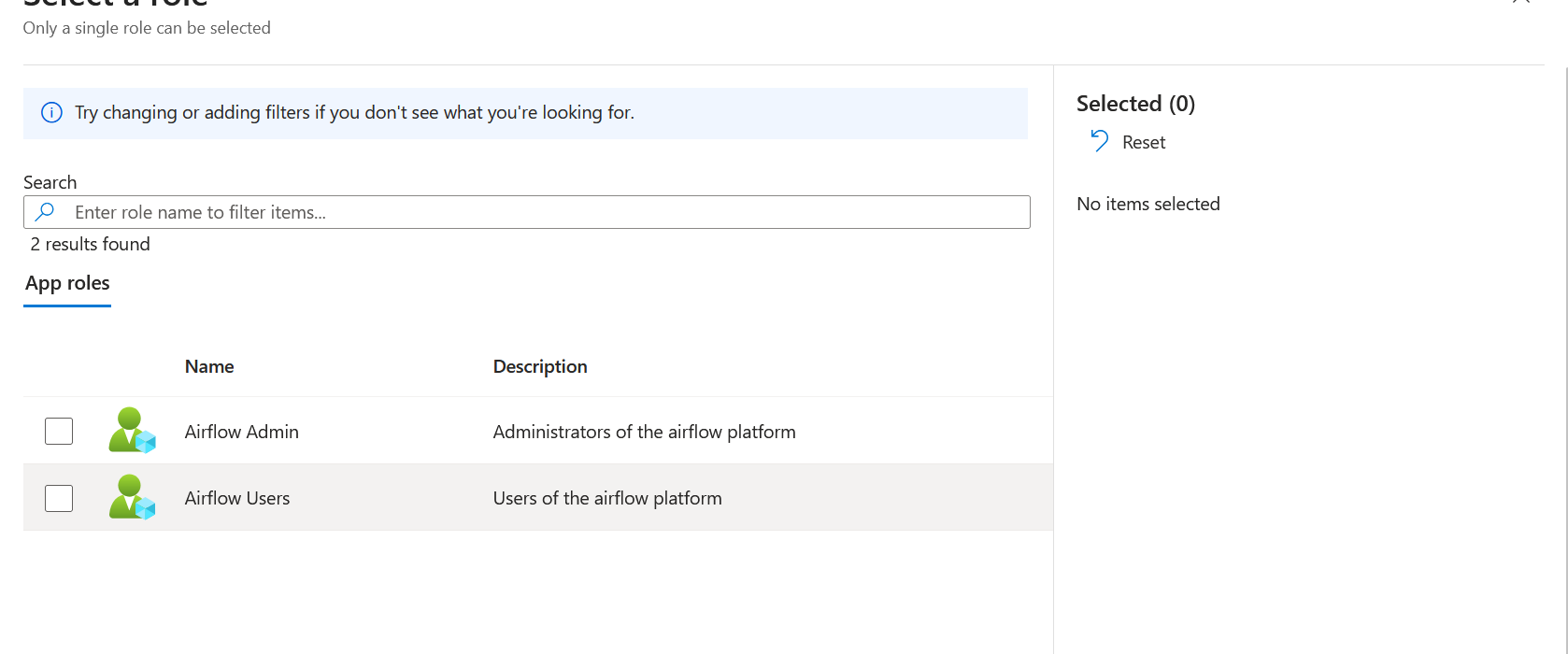
Select the Airflow Admin role for your Cloud Application Administrator account:
Note
A user can hold multiple roles. Airflow Users is a subset of Airflow Admin.
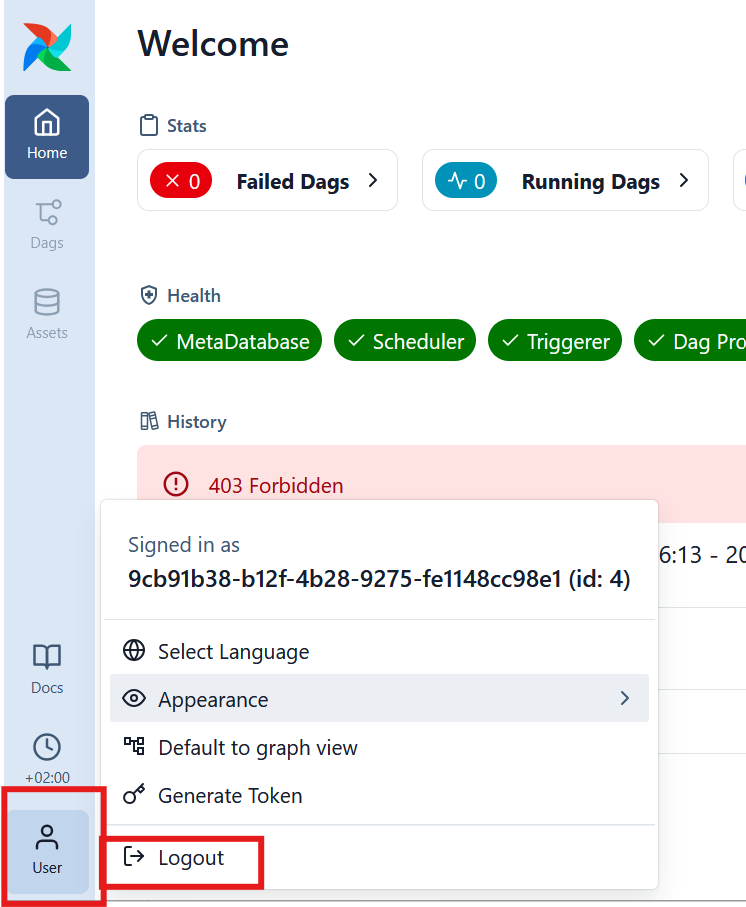
To force role synchronization, log out of the Airflow application after the role assignment:
Wait a few minutes, then log back into Airflow at
https://<your-organization>.airflow.datafoundation.eu. Role synchronization can take up to 15 minutes; once it completes and you’ve re-logged in, the 403 Forbidden error is gone: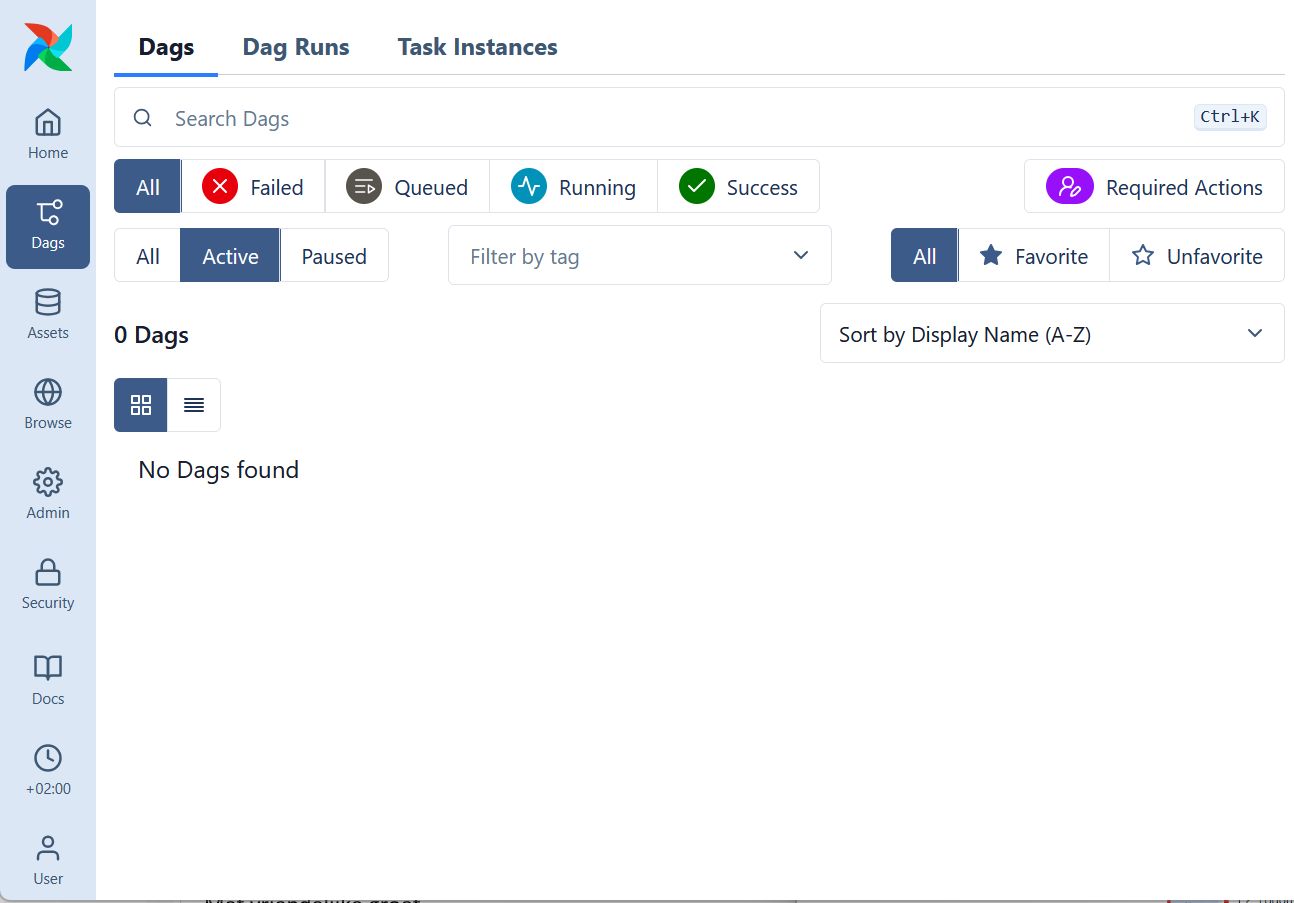
Assign the Airflow User role to the rest of the Airflow developers in your organization the same way, directly in the Azure portal (preferably via a user group). See Managing access: Airflow roles for what each role can do and how to manage assignments afterwards.