Data engineer journey
This chapter follows a data engineer in Security Center: from the dashboard to publishing data, asking for access and deciding on requests from other teams. Terms are explained in Concepts. How you create tables and read data in a notebook is in Notebooks and SQL.
The dashboard
Open https://<customer>.security.datafoundation.eu and sign in (see
Introduction). You land on the Dashboard:
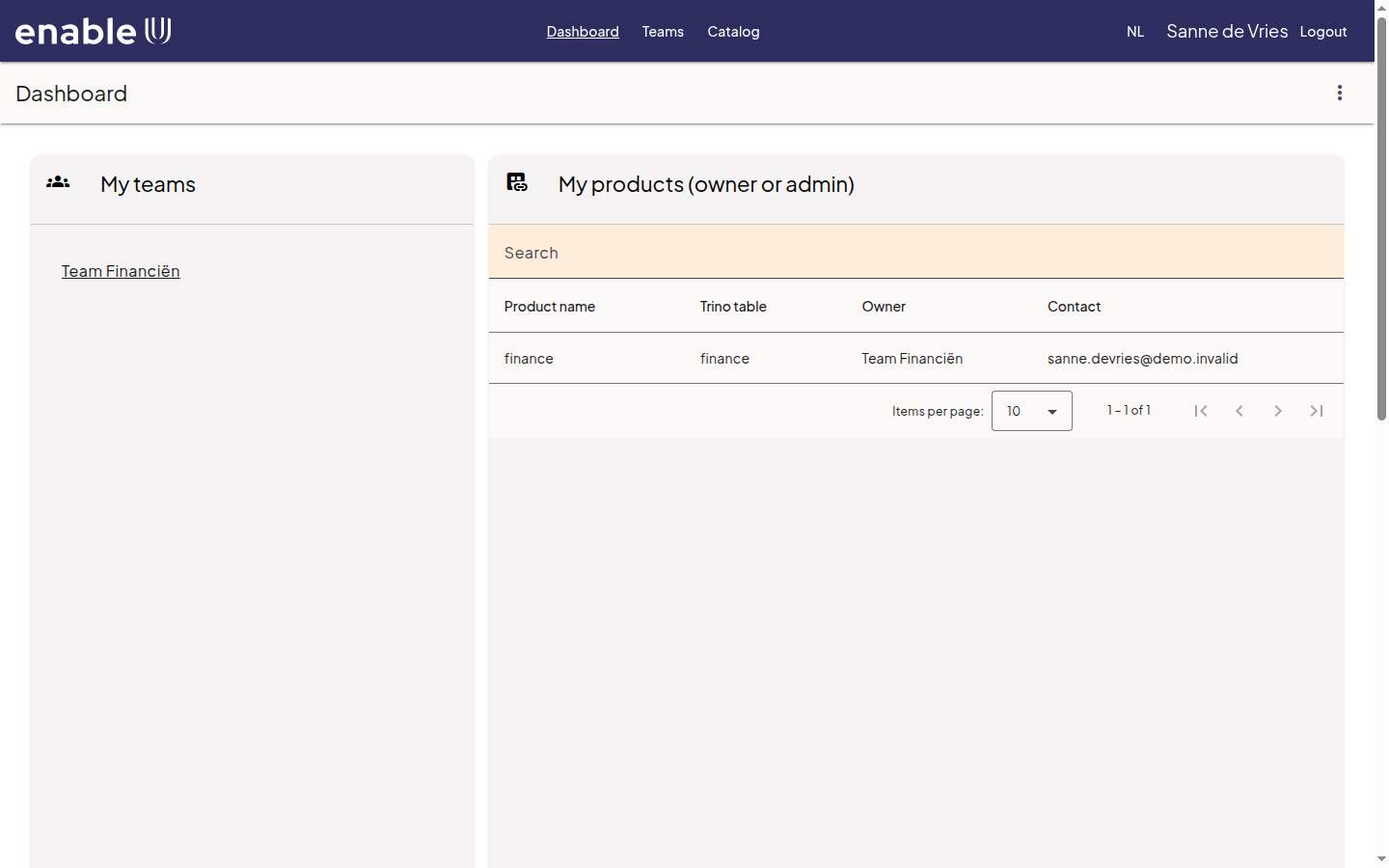
My teams: the teams you are a member of. Choose a team to see its members and its permissions.
My products: the data products your teams own.
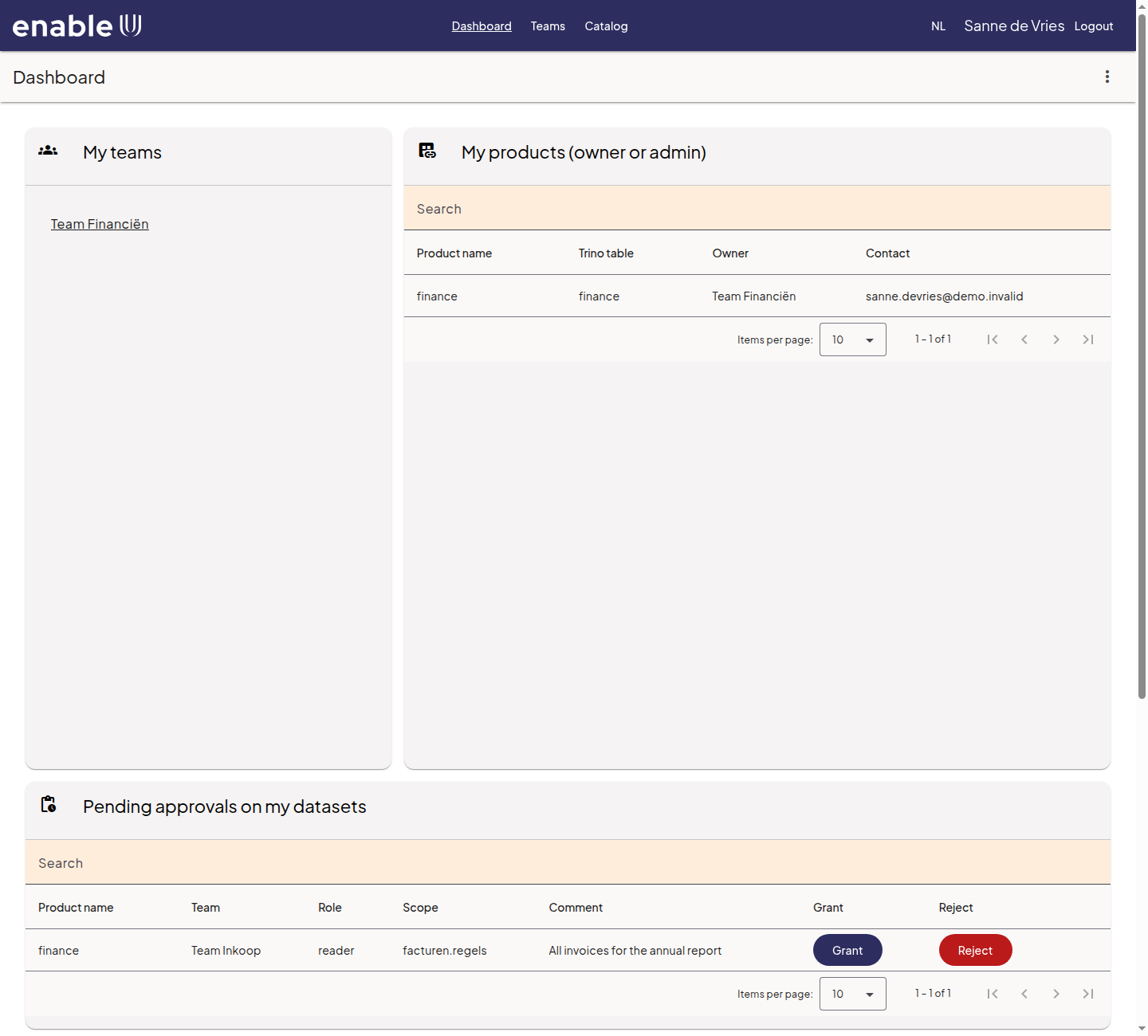
Pending approvals on my datasets: requests of other teams for access to your products, waiting for your decision. See Deciding on a request.
My permissions: the access your teams have to products of others.
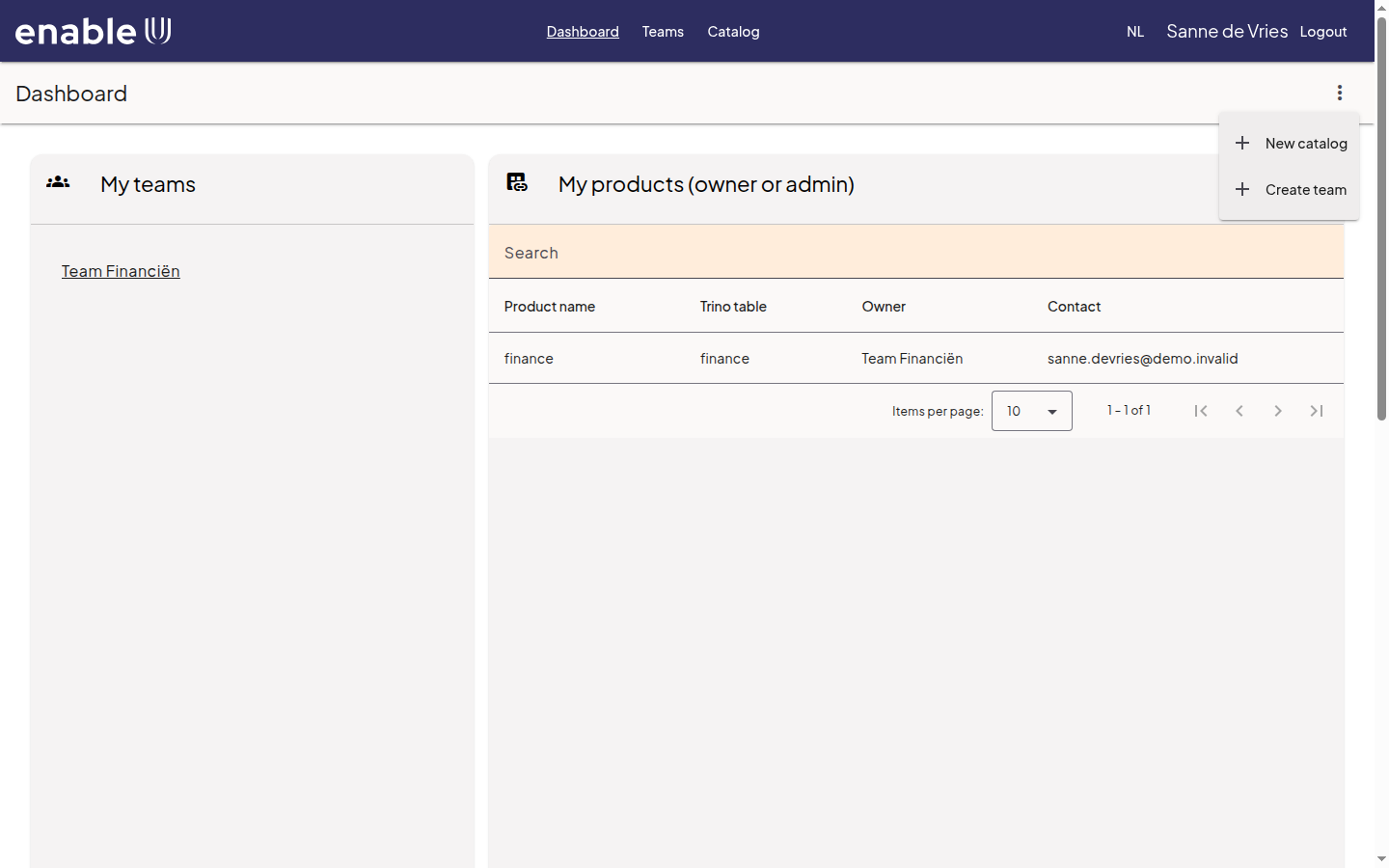
The menu with the three dots at the top right offers New catalog and Create team:
Browsing the catalog
Choose Catalog in the top bar. The tree on the left shows the catalogs;
open one to see its schemas and tables. Next to an item you see what you may
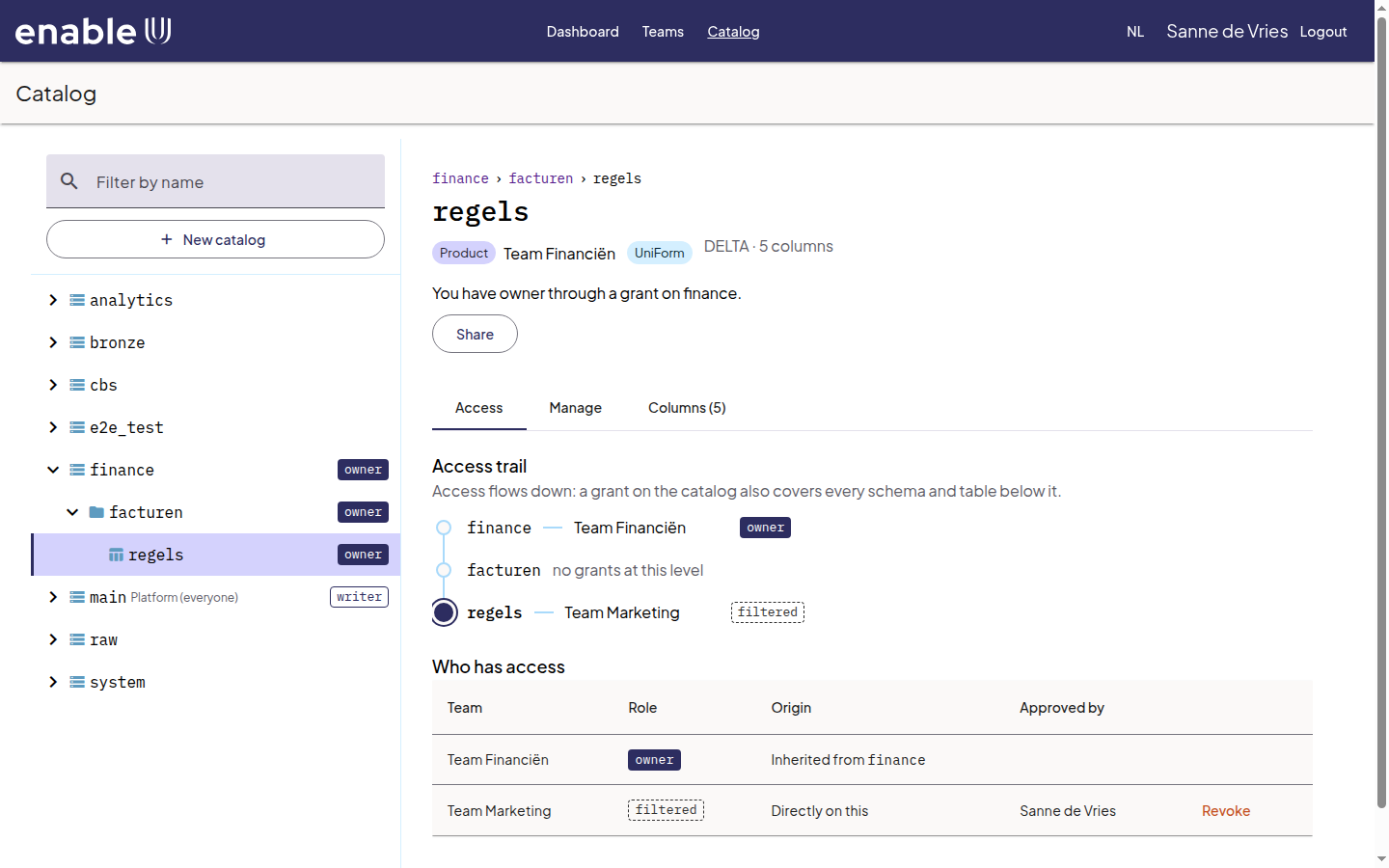
do with it: owner, writer, reader or filtered. Everybody can
use the platform catalog main.
Type in Filter by name to narrow the tree. Use the arrow keys to move through the tree and Enter to open an item.
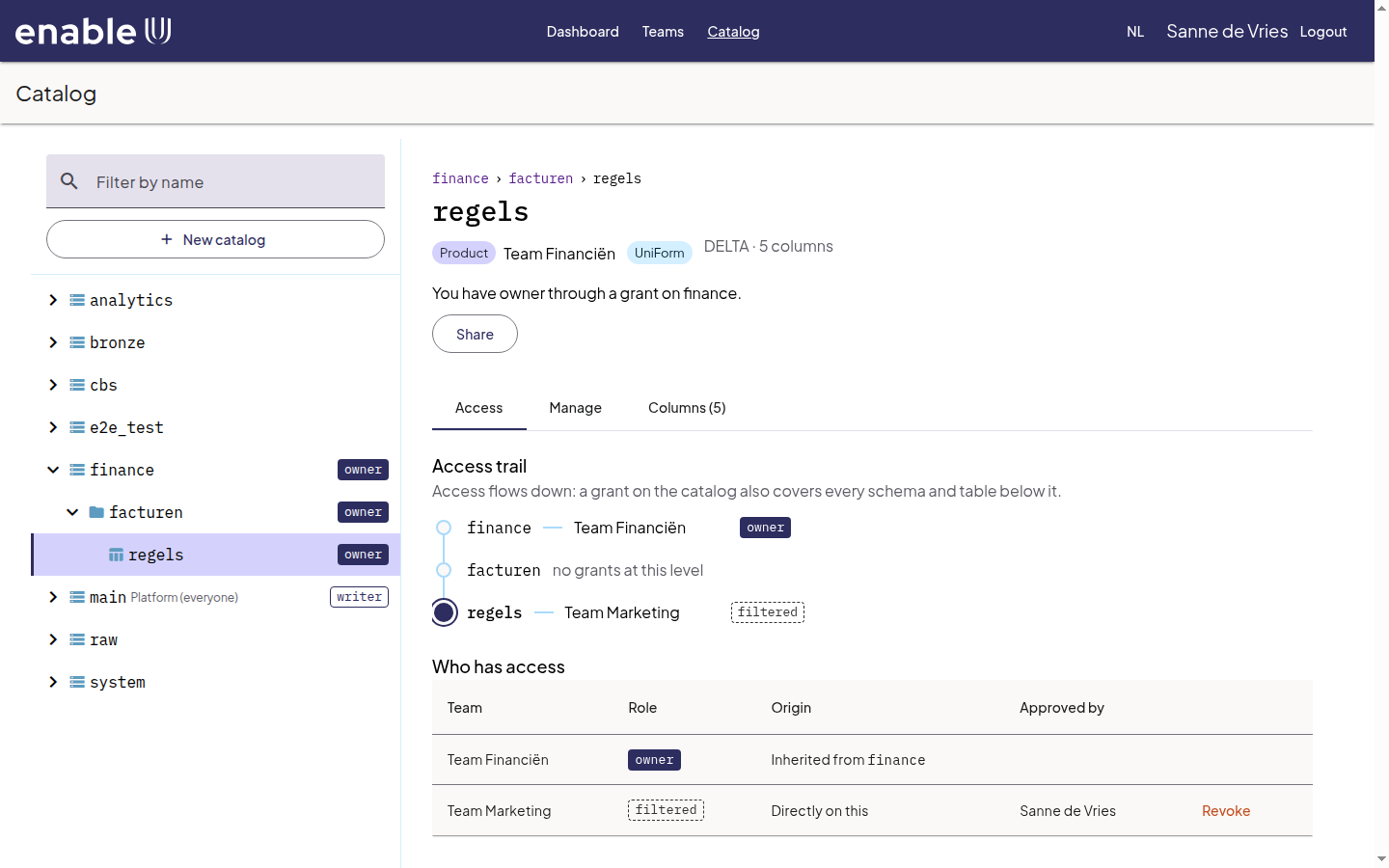
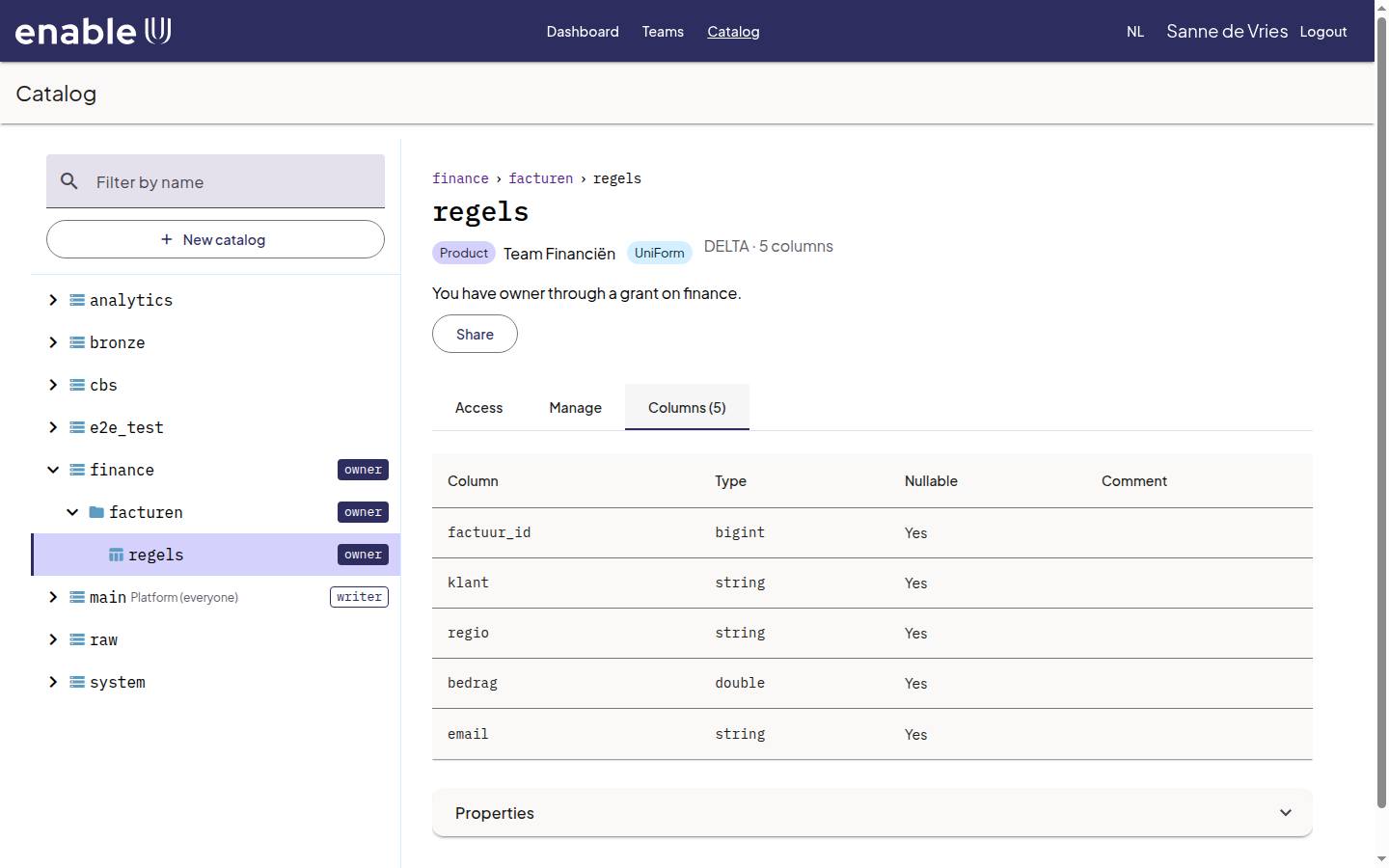
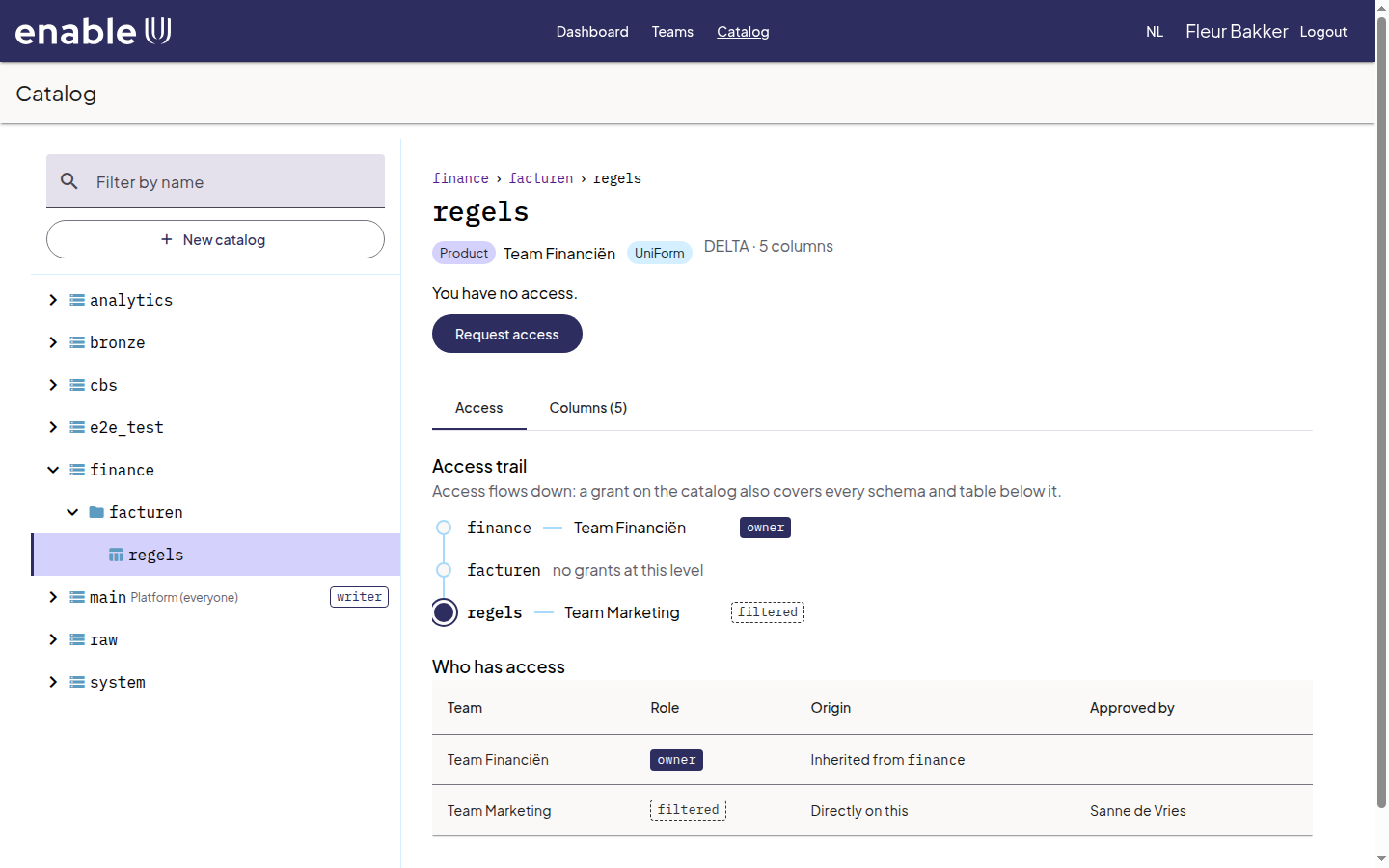
Select an item to see its details: the path, the owner team (Product), the format (for example Delta, with the number of columns) and the line You have owner through a grant on finance, which tells you what you may do and where that comes from.
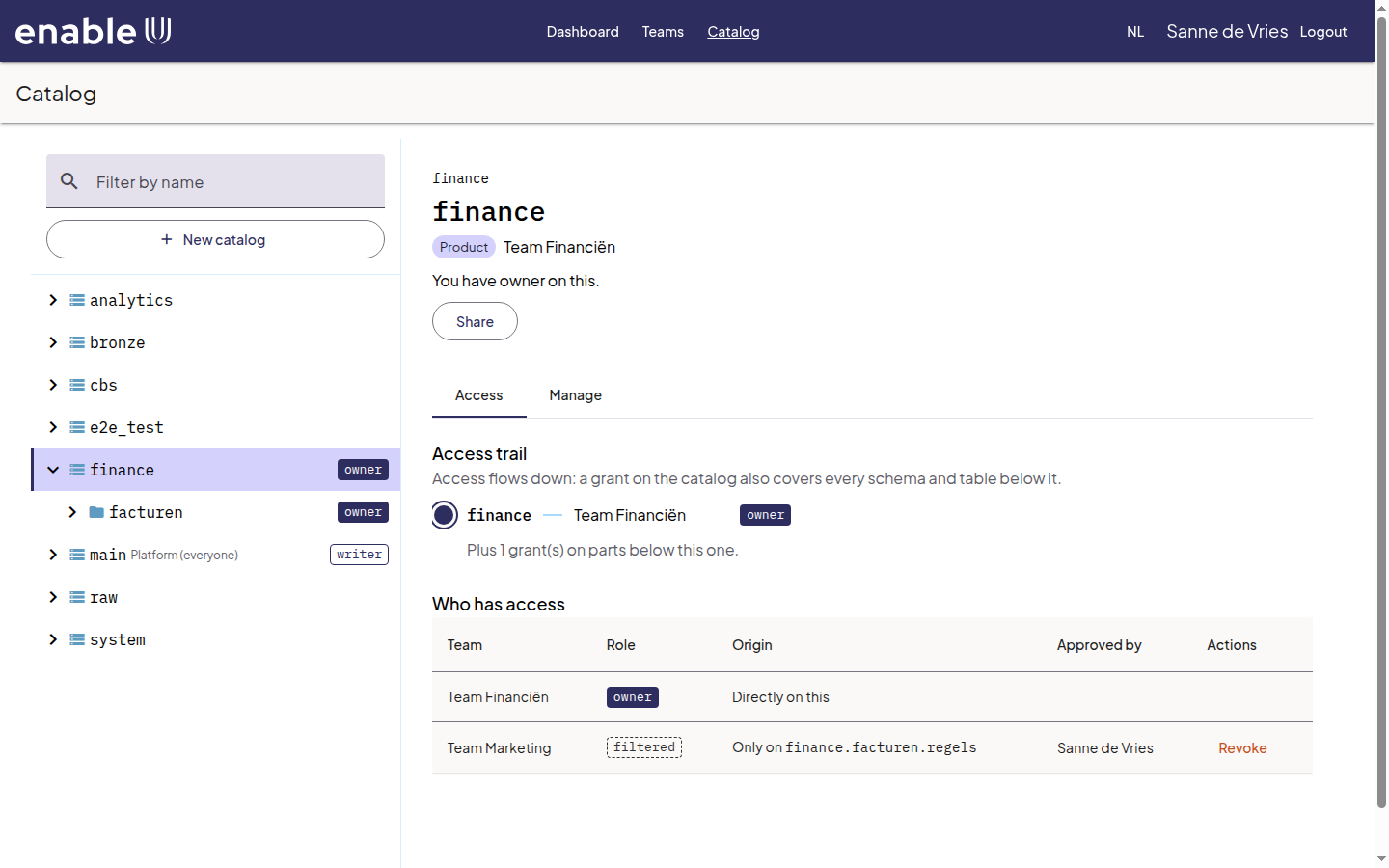
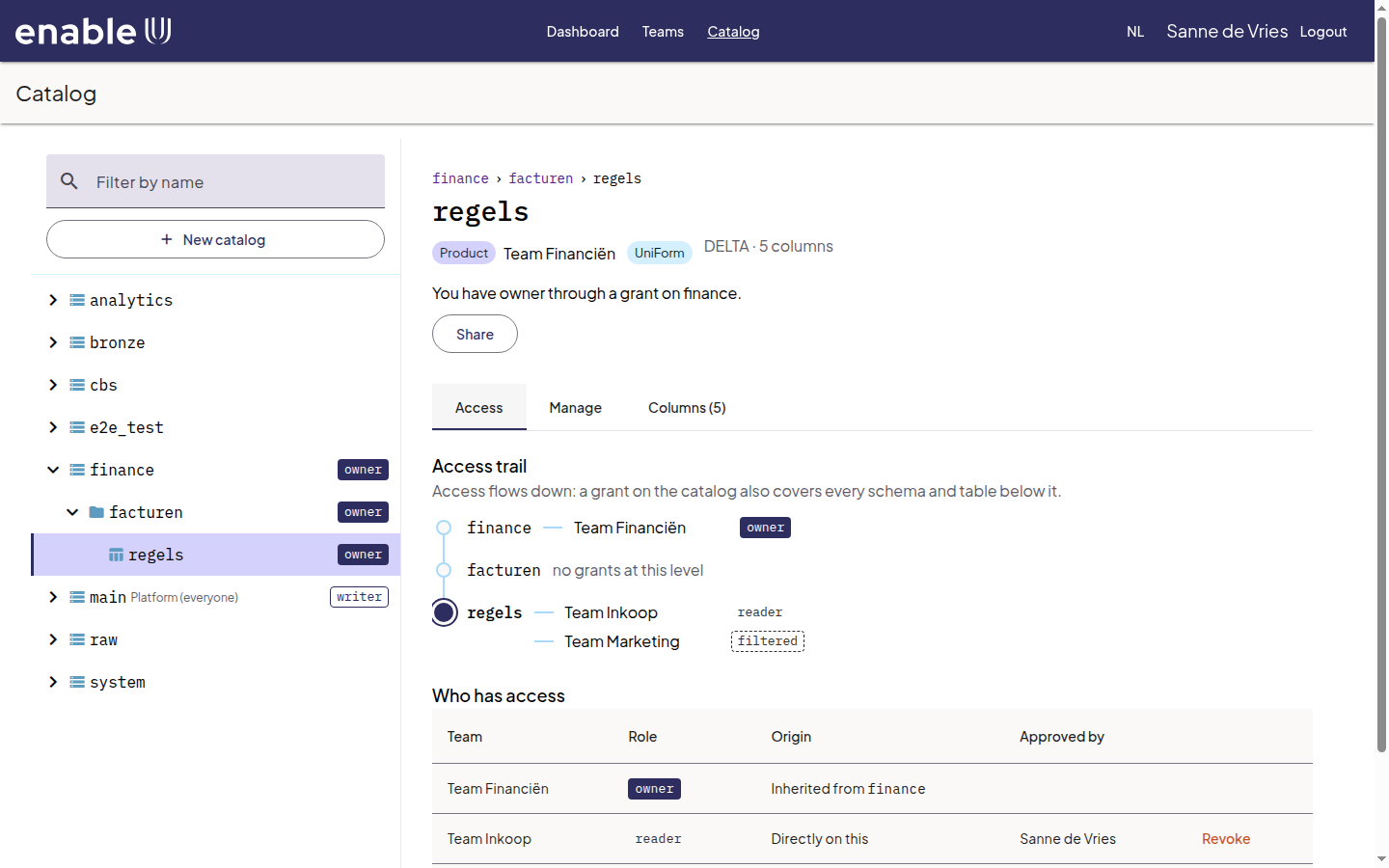
The tab Access shows the Access trail: where access is given along the path from the catalog down to the item, and Who has access: every team and role, where it comes from (Origin) and who approved it.
The tab Columns lists the columns with their types.
The tab Manage is only there for owners, see Managing your data product.
Creating a data product
A data product starts as a catalog that your team owns. Choose New catalog (on the dashboard or in the catalog tree):
Fill in the Catalog (the name, for example
finance) and choose the Owner (team). A name has lower-case letters, digits and_and starts with a letter; capitals you type become lower case, because Spark and Trino always use lower-case names. If the dialog also shows Kind, choose Product catalog, see Concepts. Add a Contact, a Classification and an Description, and tell the administrator why you need it in Reason of request. Leave Product name empty to use the name of the catalog.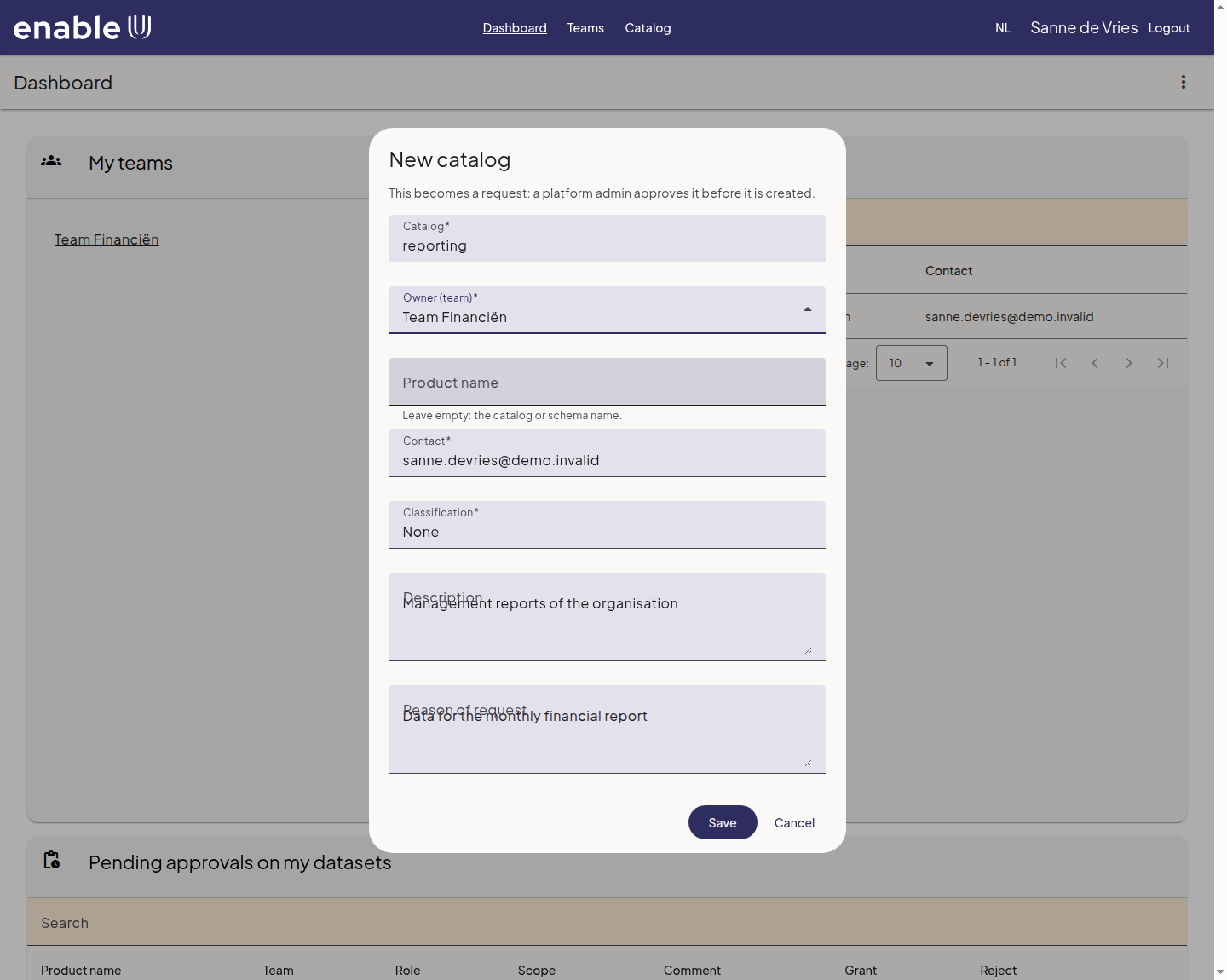
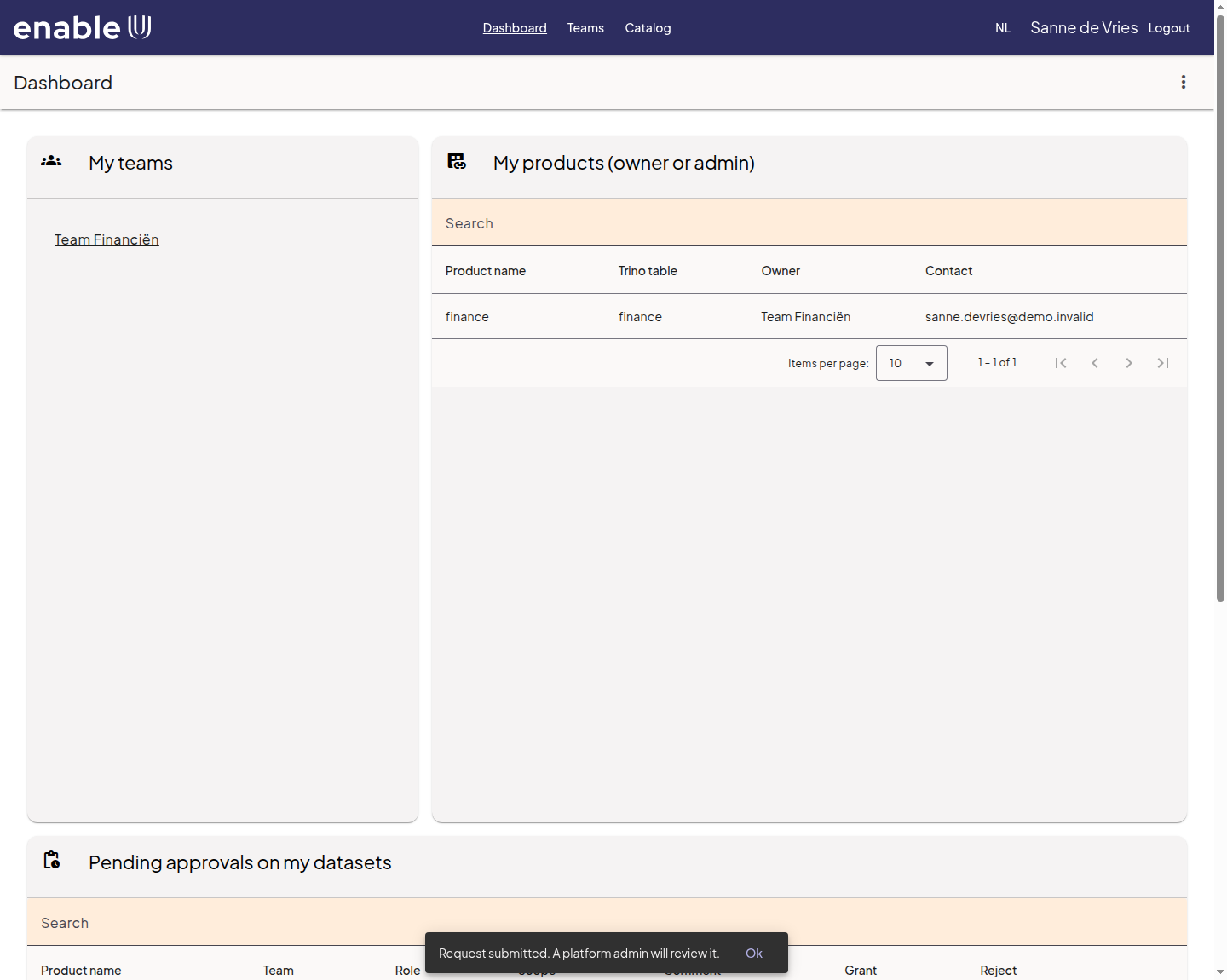
Choose Save. With the default policy the dialog says that this becomes a request: an administrator approves it before it is created. You see the message Request submitted.
When the administrator has approved (see Administrator journey) the catalog appears in the tree with the label owner.
You create the schemas and tables in the catalog with Spark in a notebook, see Notebooks and SQL. They appear in the tree and belong to your team.
Requesting access to data
When you select a table, schema or catalog you may not use yet, the page says You have no access and offers Request access.
Choose Request access. The dialog says in words what you ask for, for example this one table. Choose the button below it if you want to ask for the whole schema, including everything that is added later.
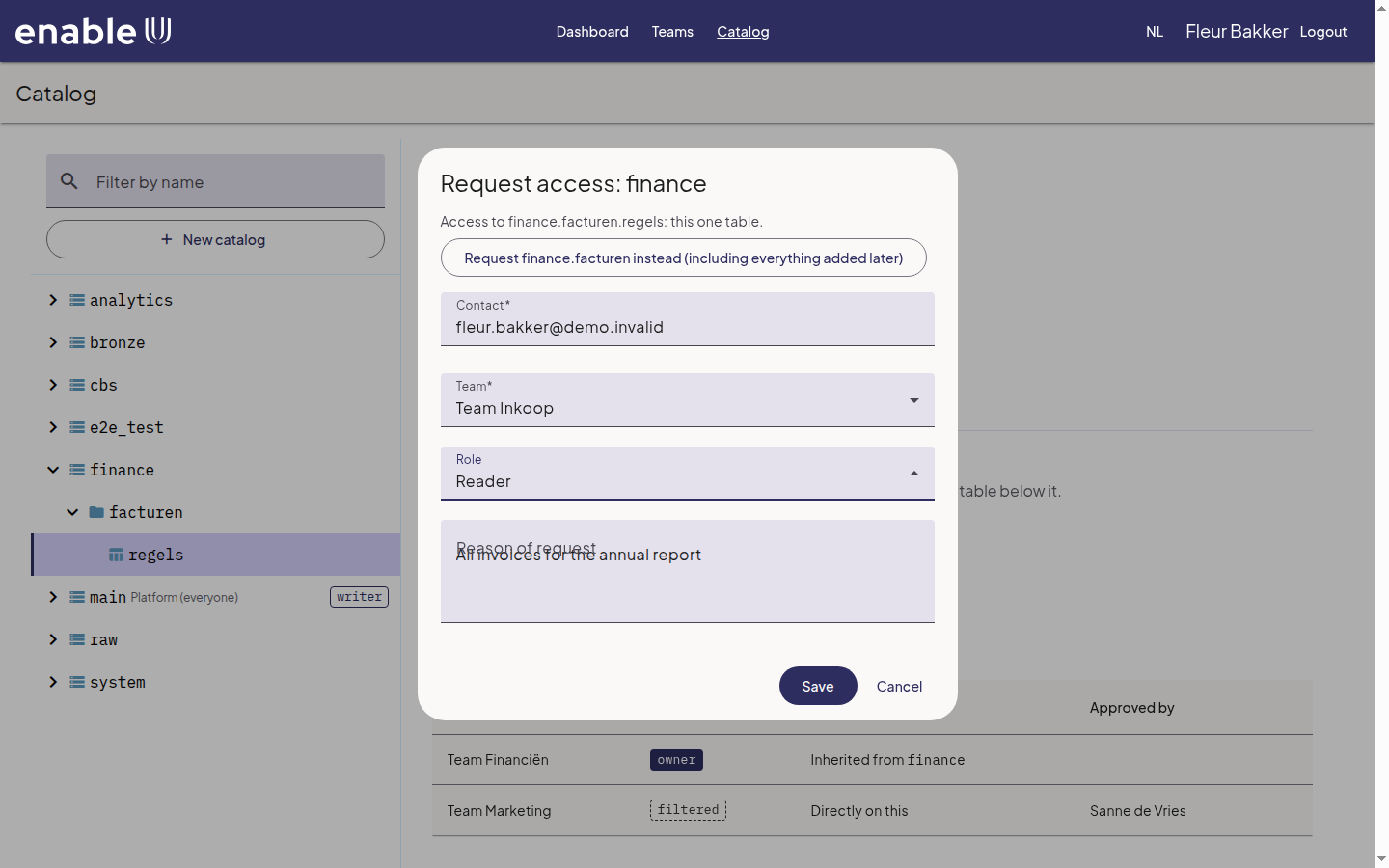
Pick the Team that asks and the Role you need (Reader, Writer or a custom role of the owner, for example
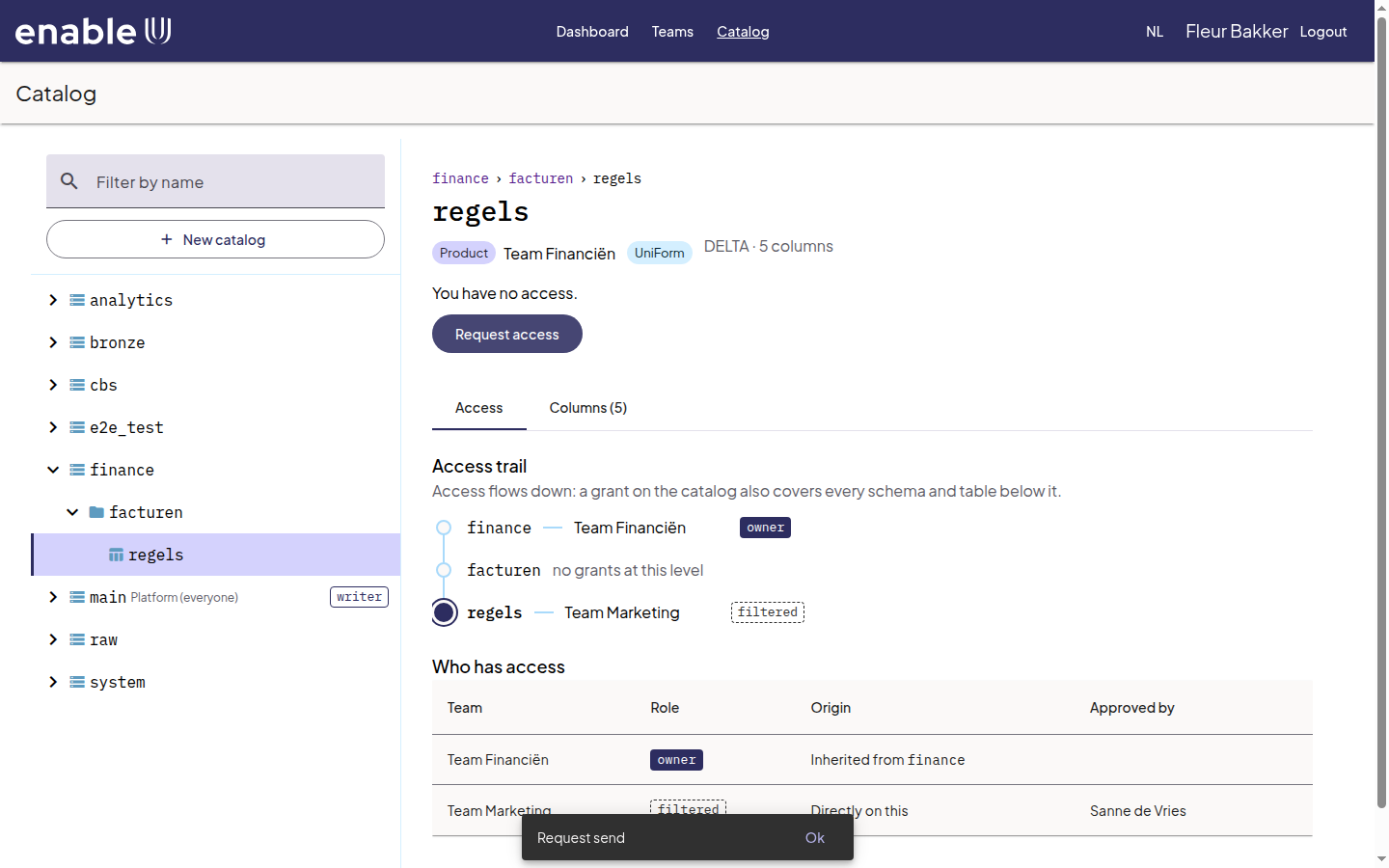
regio_noord). Give a Reason of request and choose Save.You see Request send. The owner team sees your request and decides. Until then nothing changes for you.
Deciding on a request
Requests for your products show up in two places: on the dashboard under Pending approvals on my datasets, and on the tab Manage of the product (the number on the tab tells you how many wait).
Open the product and choose the tab Manage. Pending requests lists the team, the role, the scope (Scope), the reason (Comment) and the contact of the requester.
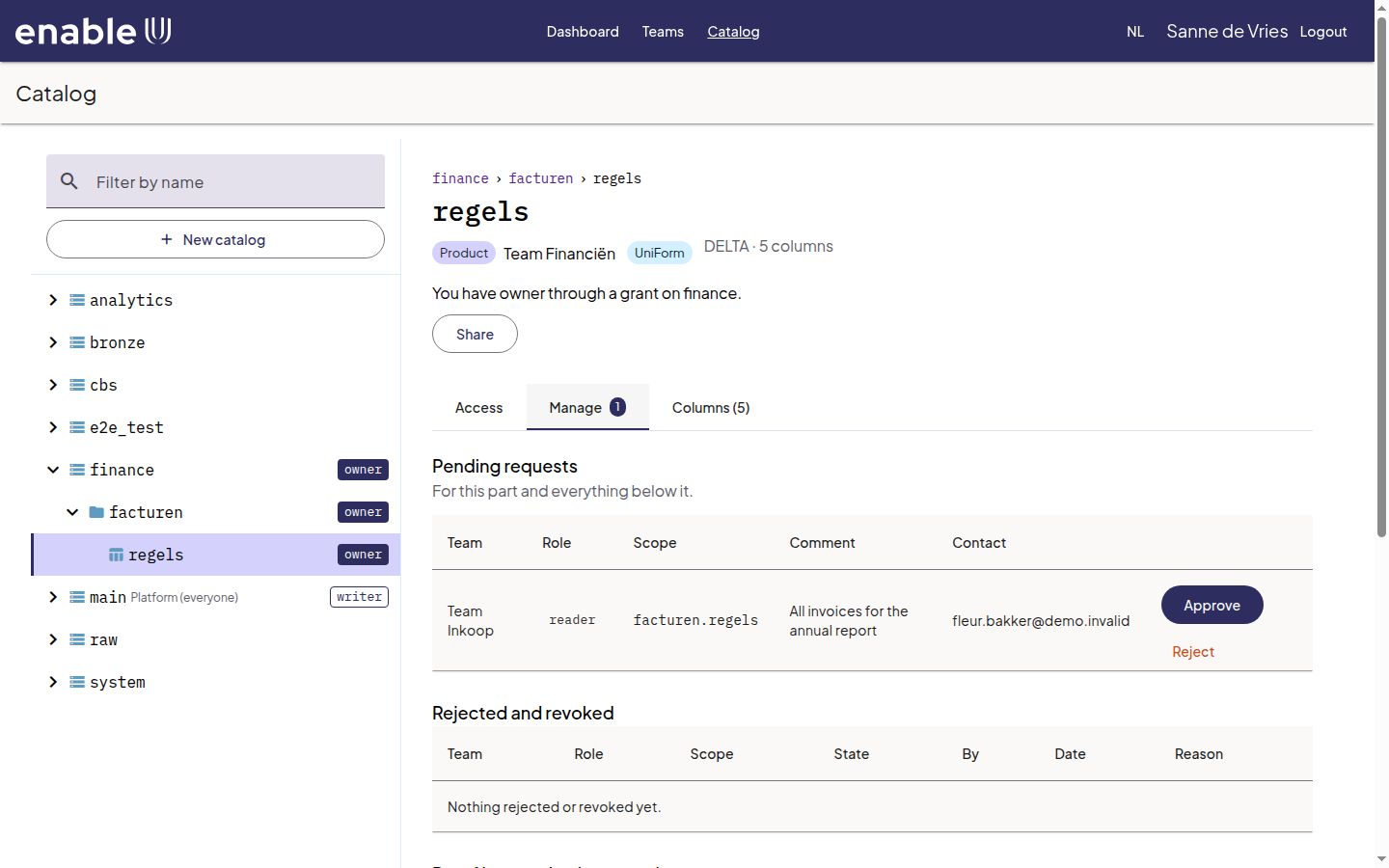
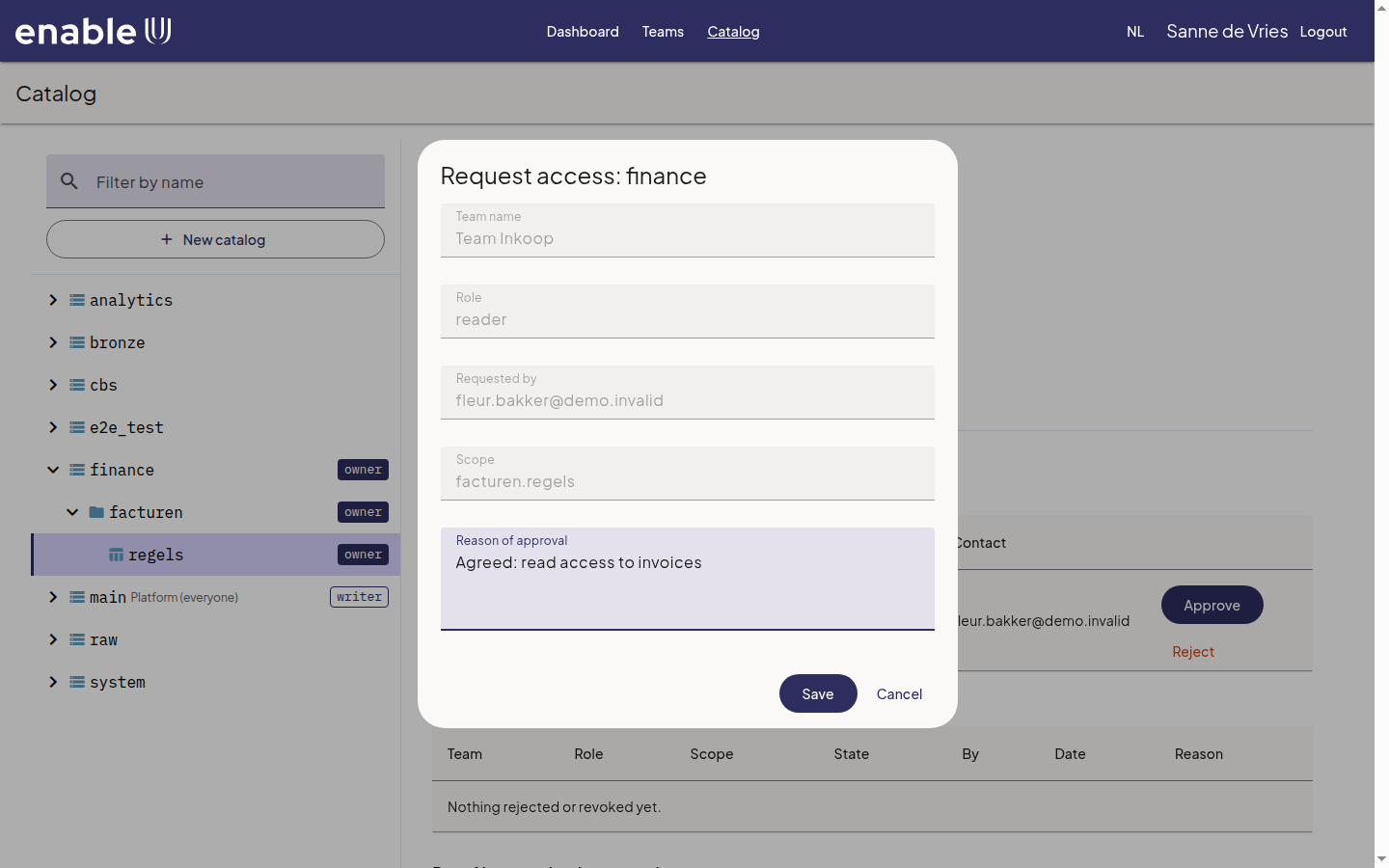
Choose Approve or Reject. A window shows the request again; give a reason and choose Save. The requester sees your reason.
On the tab Access the team now appears under Who has access, with your name as the one who approved it. Revoke takes the access away again.
Rejected and revoked requests stay visible under Rejected and revoked, with the date and the reason.
Managing your data product
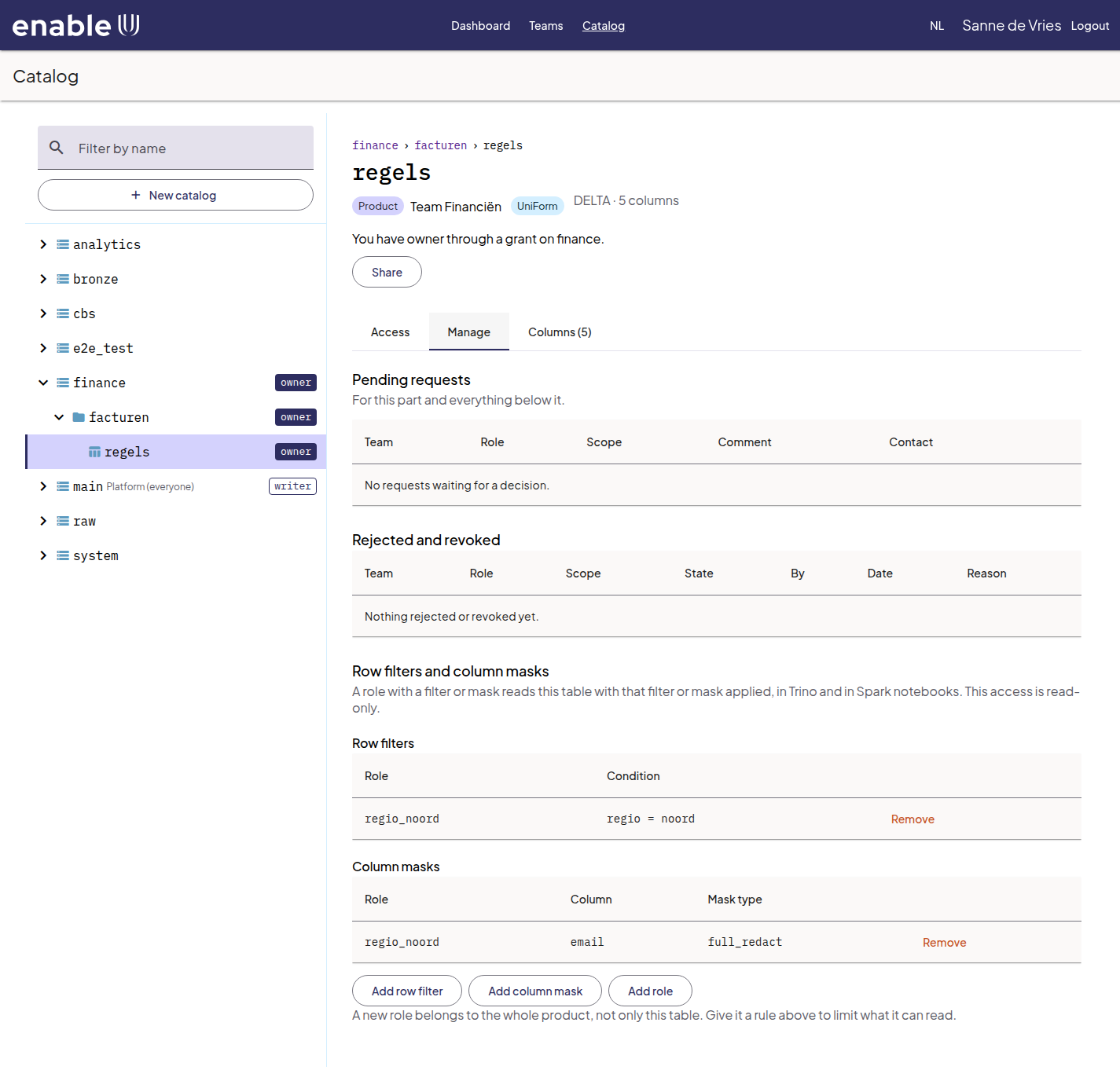
As an owner you see the tab Manage on your catalogs, schemas and tables. Besides the requests it holds the roles, the row filters and the column masks of the product.
A custom role
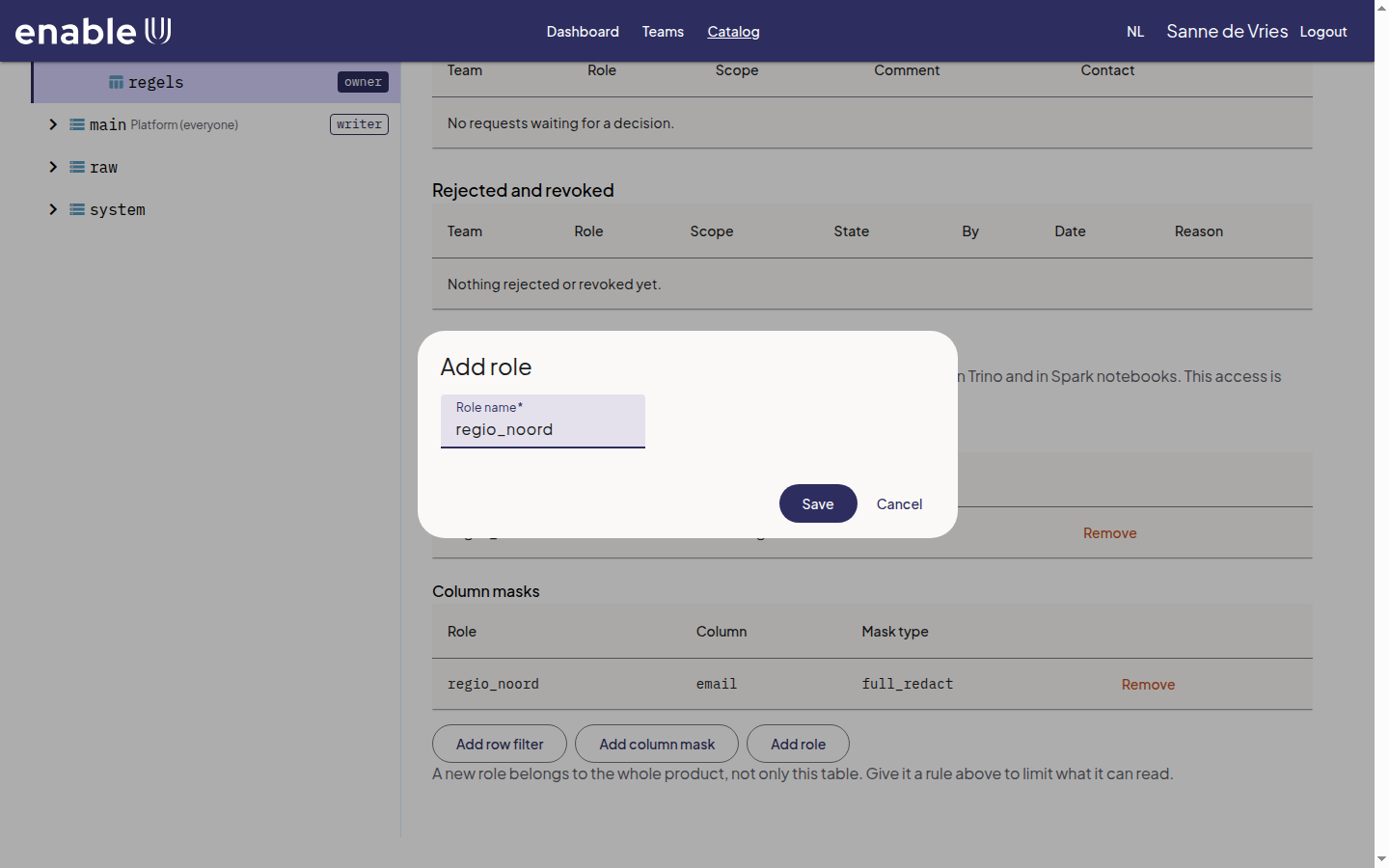
Besides reader and writer you can make your own roles. Choose Add
role, enter a Role name (role name: lower case, starting with a
letter, for example regio_noord) and choose Save. A new role belongs
to the whole product, not to one table. It is available at once as a role to
request and as a role to give a filter or a mask.
A row filter
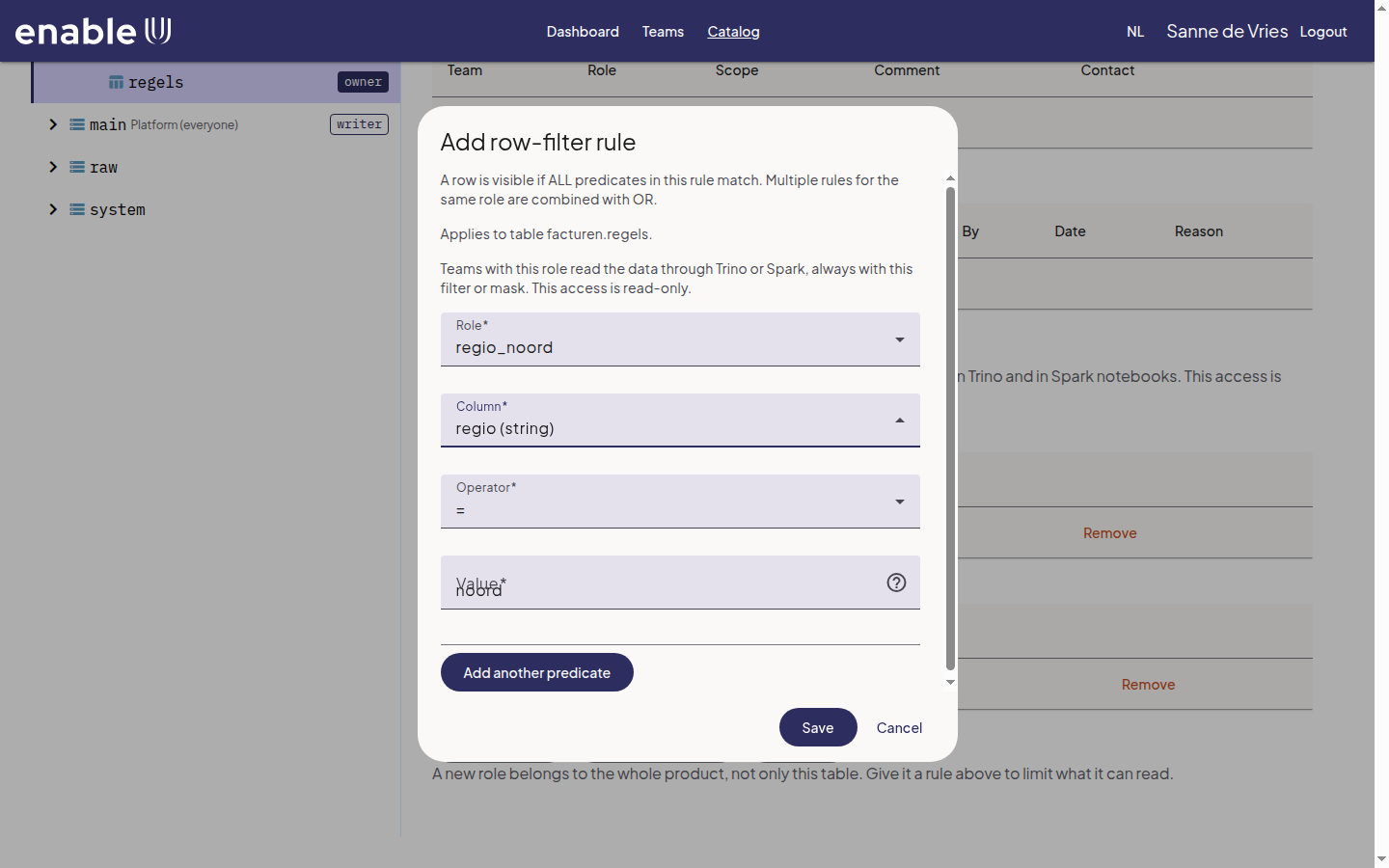
A row filter hides rows. Choose Add row filter and fill in:
Role: the role the rule applies to.
Column: the column to test.
Operator and Value: for example
=andnoord. A row is visible when all conditions of the rule match; Add another predicate adds another condition. Several rules for the same role are combined with OR.
A column mask
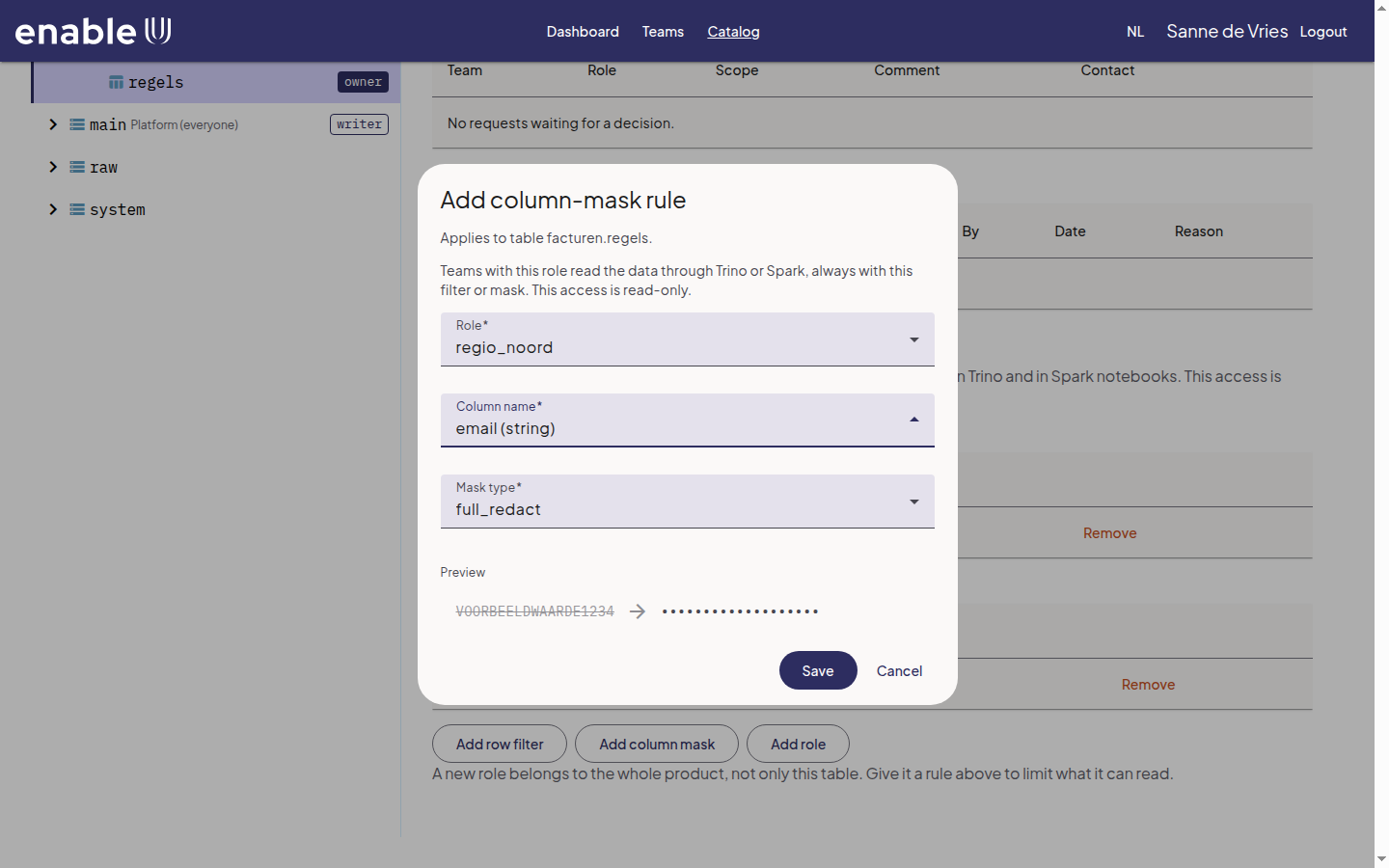
A column mask hides the values of a column. Choose Add column mask, pick the Role, the Column name and the Mask type. The dialog shows an example of the result:
Mask type |
Effect |
|---|---|
|
Replaces the value completely. |
|
Replaces the value by a one-way hash. |
|
Masks a part and keeps the rest visible, for example only the last four characters. |
|
Returns an empty value (NULL). |
Under Row filters and column masks you see all rules of the table. Remove removes a rule.
Warning
A team that holds a role with a filter or a mask reads the table through Trino, with the filter and the mask applied. The team can read it, also in a notebook, but cannot write to it. Give a team a writer role if it has to change the data.
Sharing data with another team
You do not have to wait for a request: as an owner you can give another team a role yourself. Choose Share on a catalog, schema or table, pick the Team, the Role and a Contact, give a reason and choose Save. To take access away again choose Revoke next to the team on the tab Access.